
01
Open a video design and upload the clip
Create a video canvas, open Uploads, and add the source file.
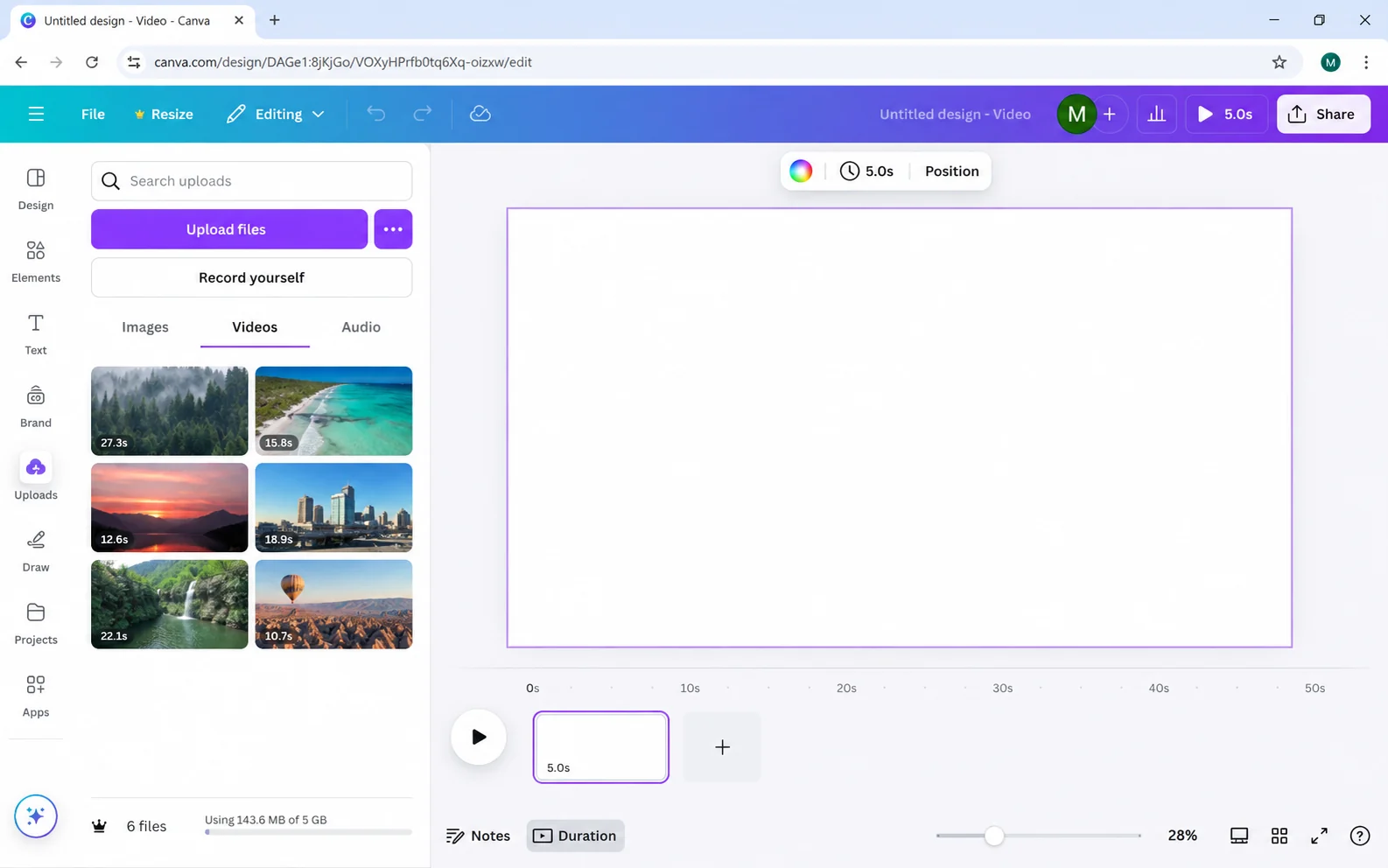
Canva can remove a video background inside its editor for eligible accounts. The exact labels may change, but the workflow remains upload, select the clip, open video editing tools, remove the background, and export.
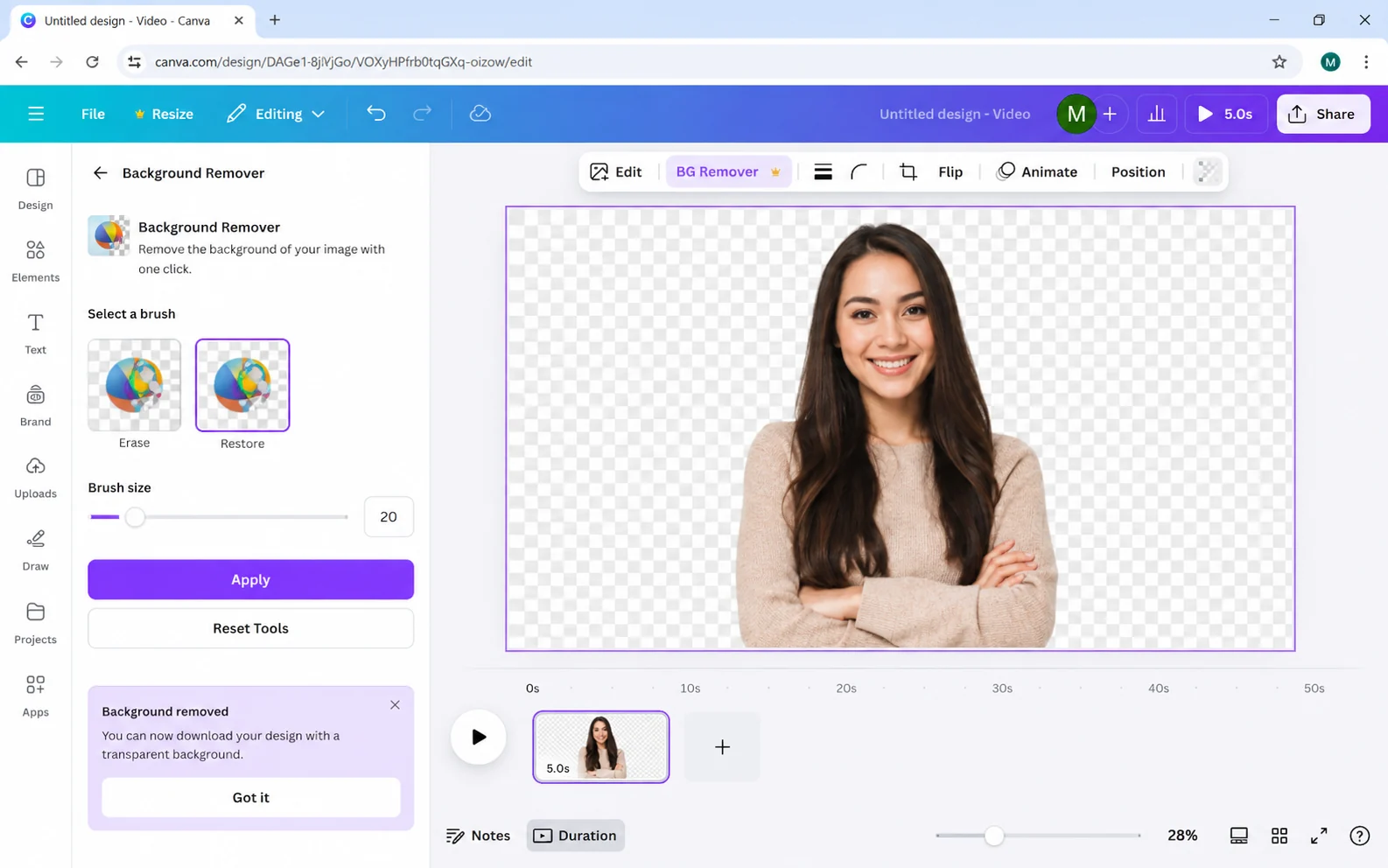
Create a video canvas, open Uploads, and add the source file.
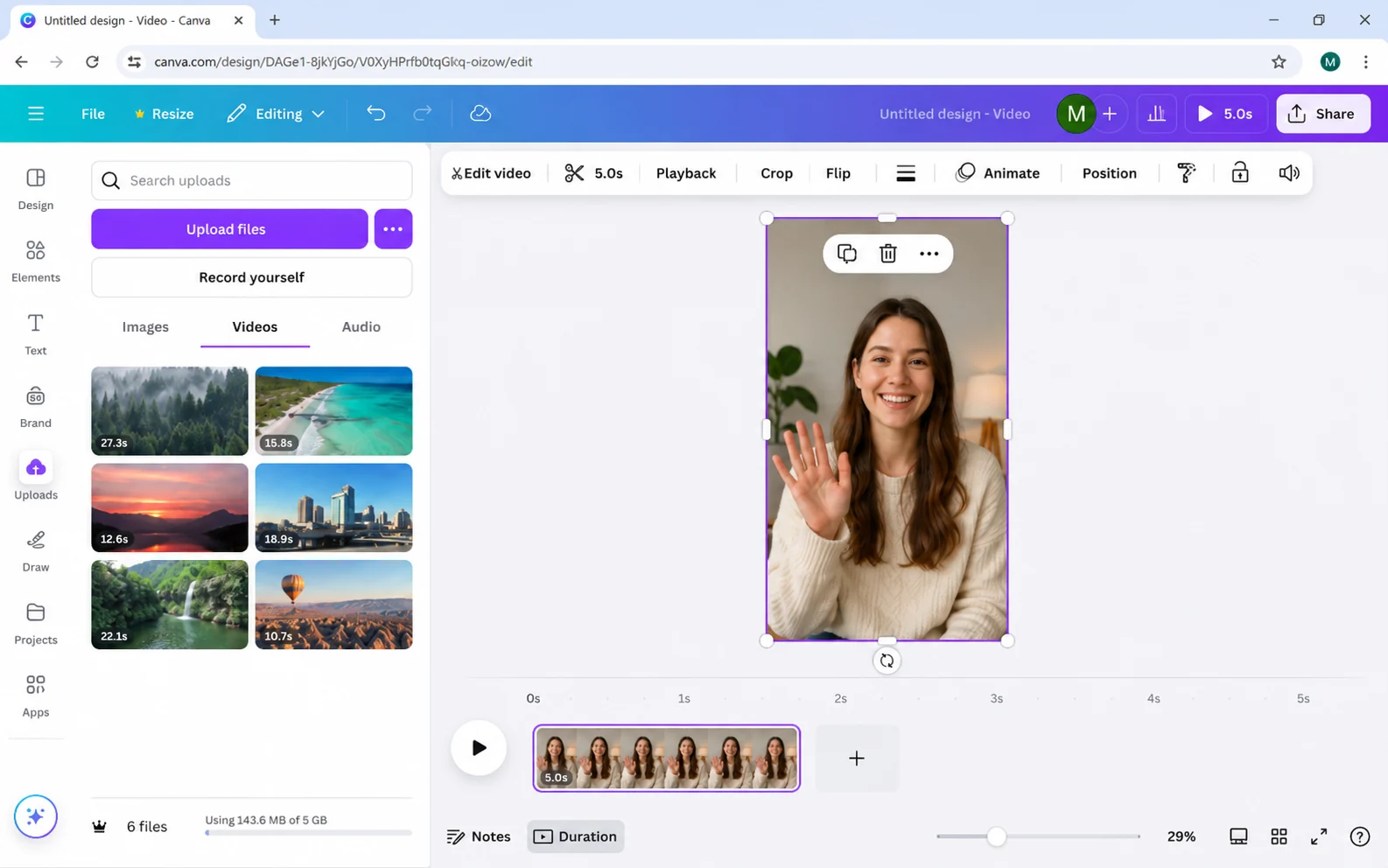
Add the clip, set the crop, and select it so the video toolbar becomes available.
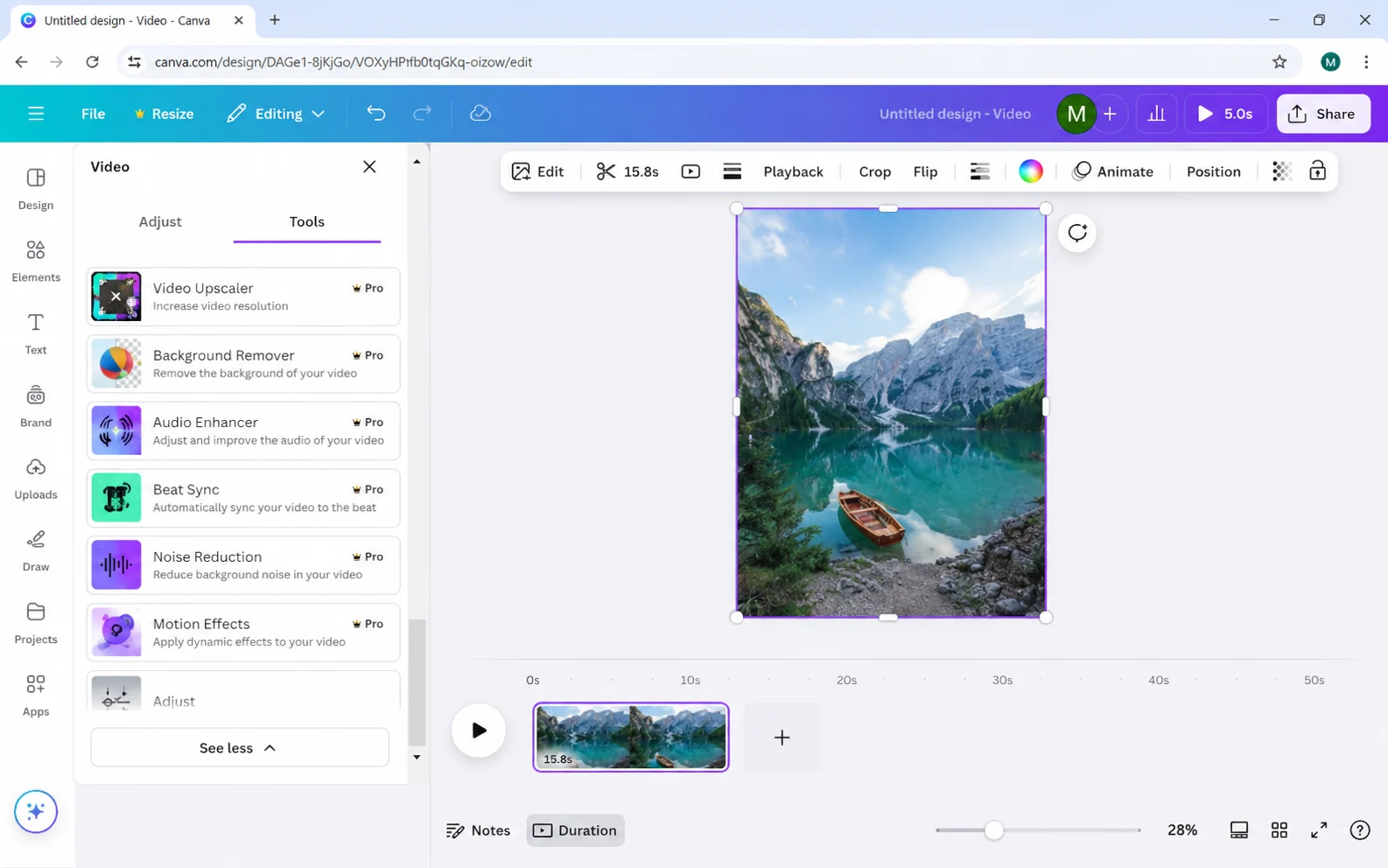
Choose Edit video, locate Background Remover, and start the automatic cutout.
Inspect the subject boundary and restore or erase small areas if those controls are available.
Place a photo or design behind the foreground and align both layers.
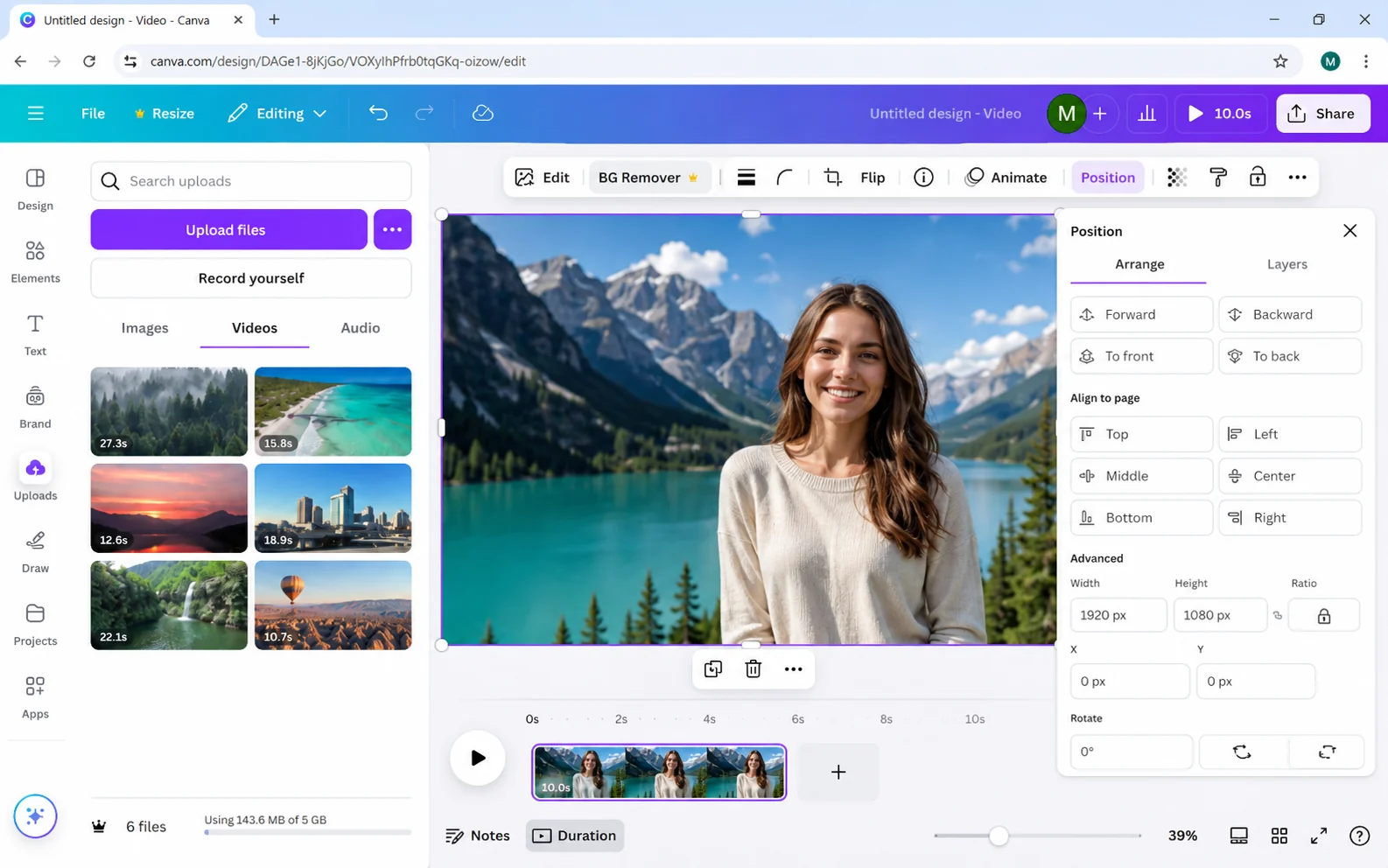
Choose the appropriate export option for the destination.
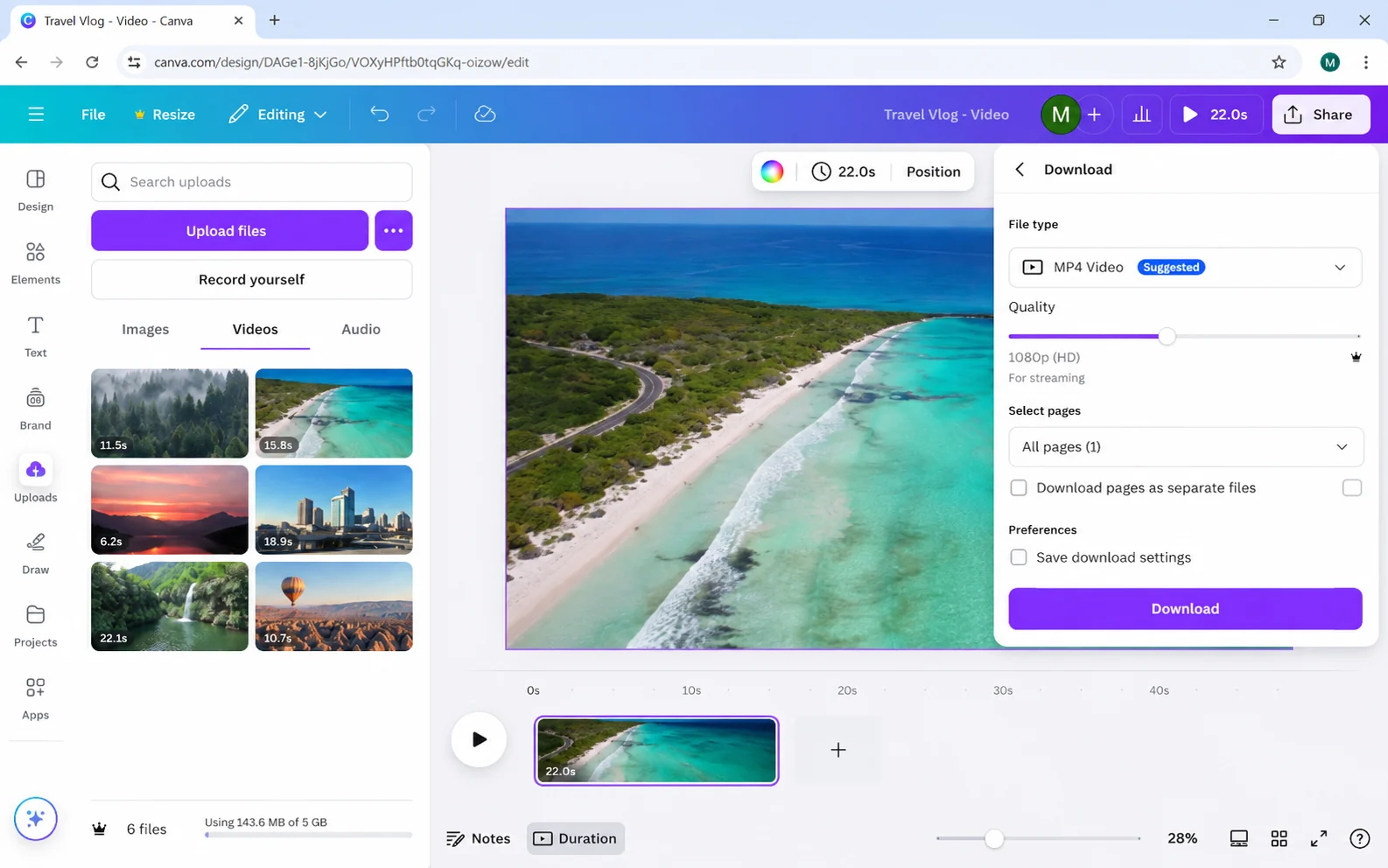
If the Canva feature is unavailable on your plan or struggles with the footage, create the foreground result in a dedicated video background remover and import it into the design.
Editor interfaces, plan availability, and button names can change. Treat the illustrated screens as orientation, confirm the controls in the current product, and review the export format instead of assuming that every plan preserves transparency.
If the editor does not expose the required remover or alpha export, process the source here first, download transparent WebM, and then bring the result into the editor for captions, timing, design, or final delivery.
Use the highest-quality original available instead of a copy downloaded from a social platform. Keep the subject large enough to see, avoid aggressive compression, and prefer even lighting with visual separation between foreground and background.
Preview the beginning, middle, and end before upload. A clip that looks easy in its first frame may contain crossed hands, hair movement, camera cuts, fast rotation, or an object that briefly disappears behind another element.
The live remover accepts MP4, MOV, and WebM. Transparent mode returns WebM; custom-background mode accepts one JPG, PNG, or WebP image up to 10 MB. A still image is composited behind the isolated foreground—the product does not currently accept a replacement video.
The free trial supports one verified clip up to 5 seconds and 50 MB. Paid plans raise the limit to 60, 180, or 300 seconds and 200 or 500 MB depending on tier. Processing credits are rounded up in five-second blocks, so a 6-second clip uses 10 credits.
Availability can depend on the current Canva plan and product version. Check the feature label in your account before starting a large project.
Transparent video support varies by format and workflow. A dedicated WebM alpha export may be more reliable for browser use.
Canva updates its editor and may expose different tools by plan, region, and design type.
Credits follow processed duration and round up to the next five-second block. A clip from 1–5 seconds uses 5 credits, 6–10 seconds uses 10 credits, and the same rule continues for longer clips.
The verified free trial allows one clip up to 5 seconds and 50 MB. Depending on the paid tier, limits increase to 60, 180, or 300 seconds and 200 or 500 MB. Background images are limited to 10 MB.