Free image color remover

Remove a color from an image

Pick the color you want to erase, adjust how closely pixels must match, and download a transparent PNG. Useful for flat backgrounds, logos and stickers when the color you remove is different from the details you want to keep.

  • JPG, PNG and WebP input
  • No upload or signup
  • Transparent PNG output

Up to 40 MB and 24 megapixels per image. Preview and PNG output keep the aspect ratio, with a longest edge of up to 1,280 pixels. Smaller images are not enlarged.

Image color removerFree · no signup
Try a sample:

Choose an image to remove a color

Open a JPG, PNG or WebP from your device. Pick a color in the original image, or enter its hex value. The file stays in this browser tab.

Stays on this device Browser processing
No login or credits
No source-file upload
Live image preview

Working with video?

Remove a video background with AI

For video filmed in a room or outdoors, the separate AI video tool can identify a foreground subject. That workflow uploads your video and uses account credits; this image color tool stays free and local.

Open AI video remover

From a background color to a transparent PNG

  1. Open the cleanest source you have

    Use the original logo, illustration or product asset rather than a screenshot of it. Heavy JPEG compression creates patches of almost-identical colors around the outline. A PNG or WebP with an even backdrop is easier to key than a photographed wall with shadows. Animated GIFs belong in the GIF background remover.

  2. Sample the color in Original view

    Choose Original, press Pick, then click a representative patch of the background. Sampling away from an edge avoids a mixed foreground/background pixel. The selected hex value appears beside the color swatch. You can also use the color control to set an exact value, such as white or black.

  3. Set tolerance before softening the edge

    Switch to Result and start with a small tolerance. Raise it until the background clears, watching fine details at the same time. Tolerance chooses which colors disappear; Edge softness blends the boundary between removed and retained pixels. A large softness value can leave a hazy, partly transparent outline.

  4. Inspect against white and black

    The checkerboard makes empty pixels visible, but it can hide a pale fringe. Change the preview to White and Black, especially around holes, corners and highlights. Spill removal can reduce reflected green or blue near soft edges. It does not restore a white detail that has already been erased by a white color key.

  5. Download PNG and check the saved file

    Choose Download PNG, then reopen the file in an editor or place it over a different background. The white, black and color preview options are inspection backgrounds: they are not baked into the image download. PNG keeps transparency; converting the result to JPEG replaces it with an opaque background. Check the saved dimensions too if your design needs a larger asset.

Two samples, including a case that loses detail

These source images were generated for this demonstration. The transparent results were exported through this tool on October 16, 2026. Open either sample above to use the same input and settings; the second example deliberately shows a limitation of deleting a color across an entire image.

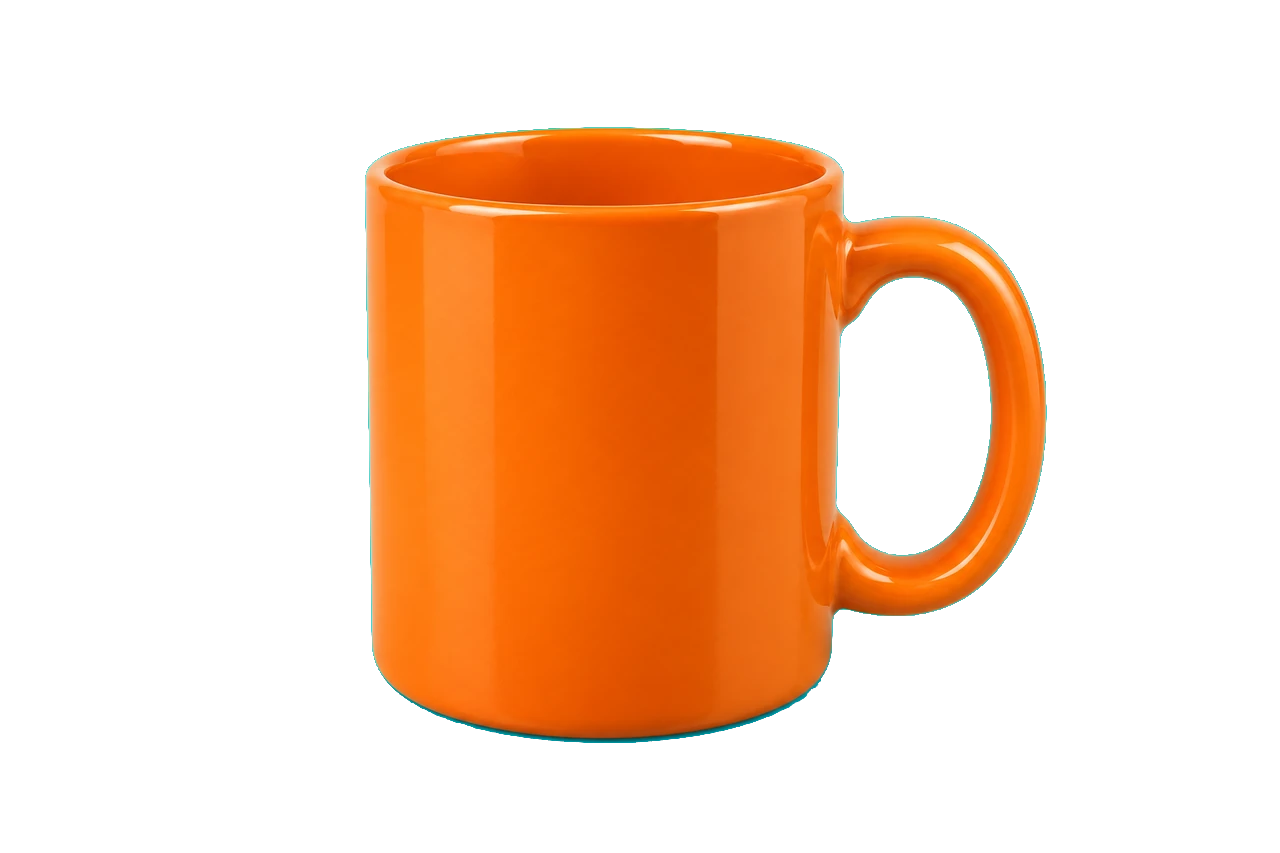
A separate background color clears the handle opening

AI-generated orange mug with cyan visible around the cup and through its handle.
Source image · AI-generated demonstration input
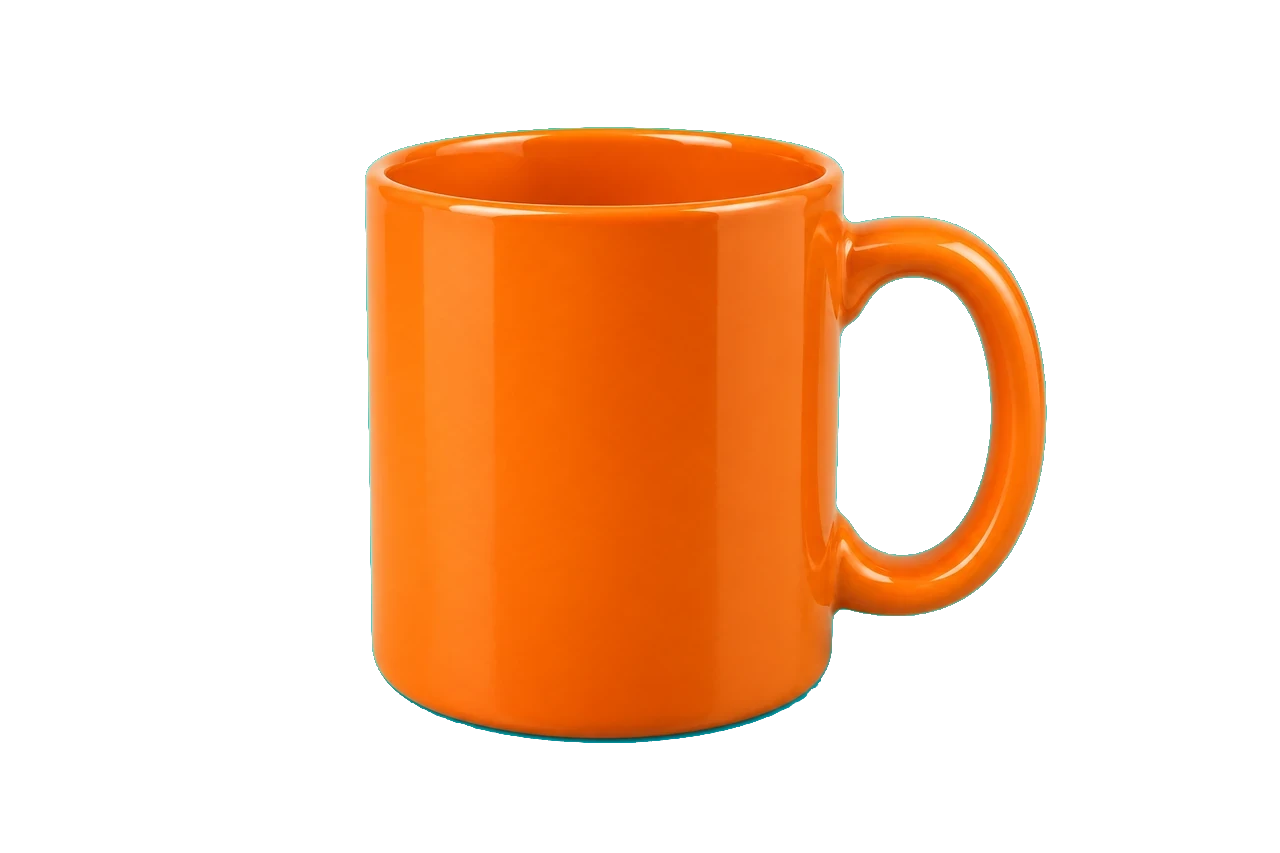
Actual transparent output with the cyan background and the space inside the mug handle cleared.
Actual PNG export · Download this PNG

Key #00D4E5 · Tolerance 30 · Edge softness 5 · Spill removal 45

The orange ceramic is far from the sampled cyan, so both the outer backdrop and the disconnected patch inside the handle can be removed with the same color setting. Look closely at the base: a darker contact shadow is a different color from the backdrop and may remain. Raising tolerance to chase every shadow can affect other details; choose the edge that fits the final composition.
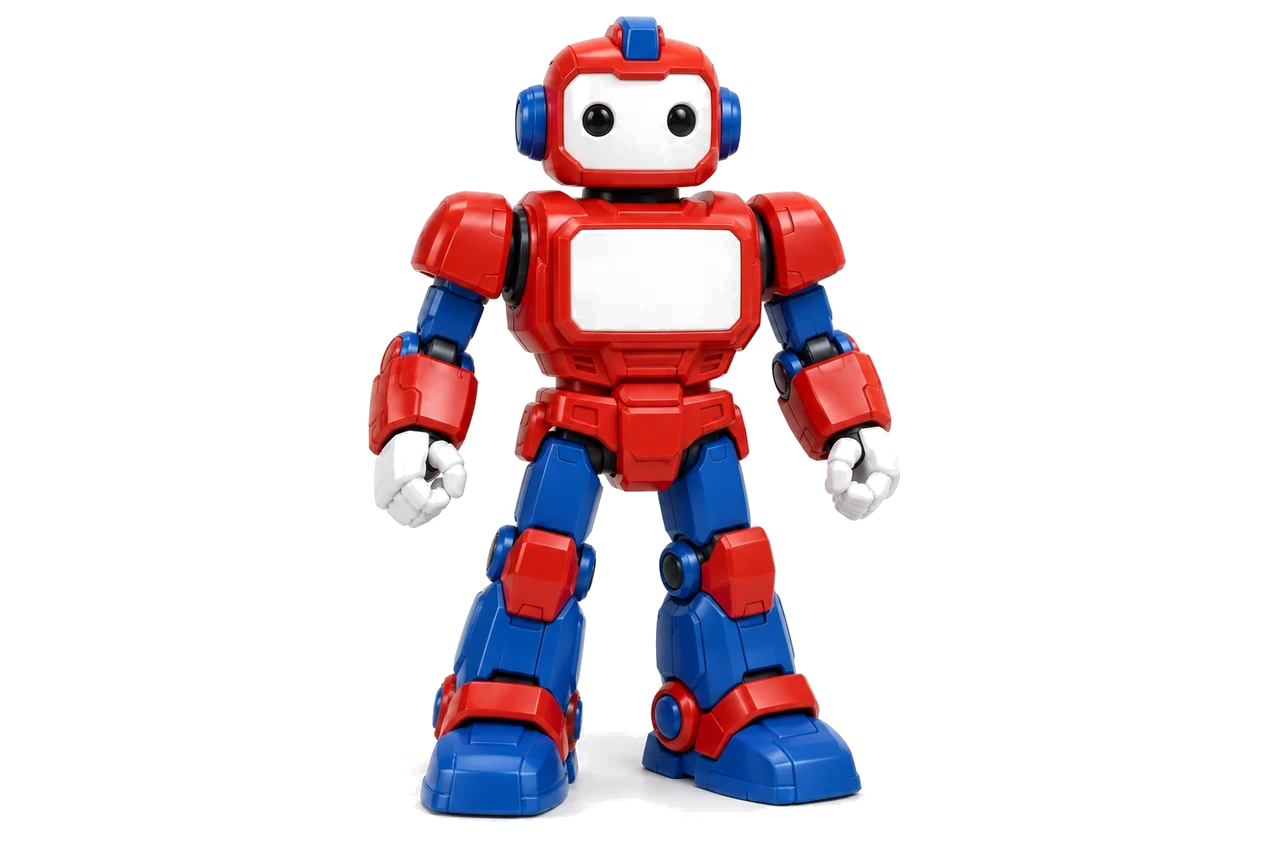
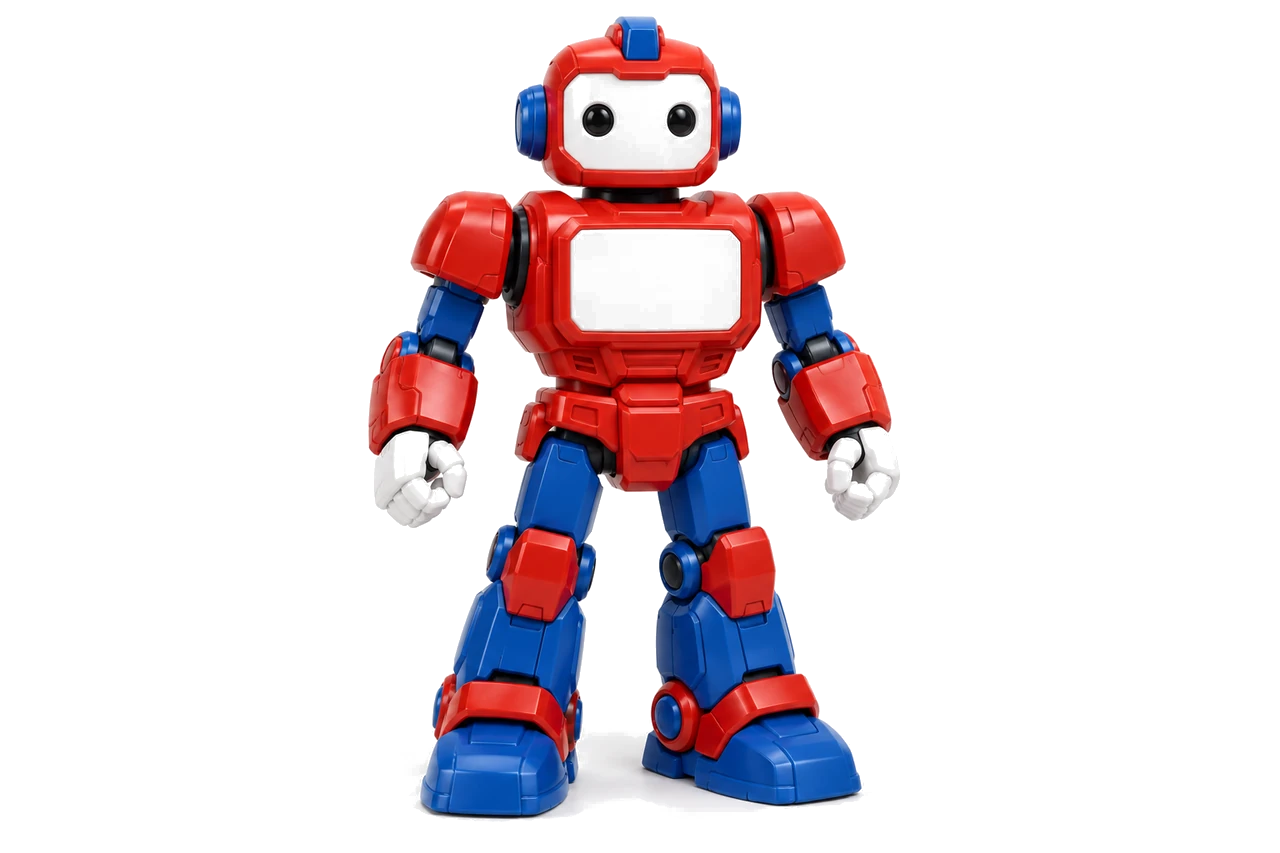
A white key also removes white parts of the subject

AI-generated red and blue robot with white face, chest and hand details on a white background.
Source image · AI-generated demonstration input
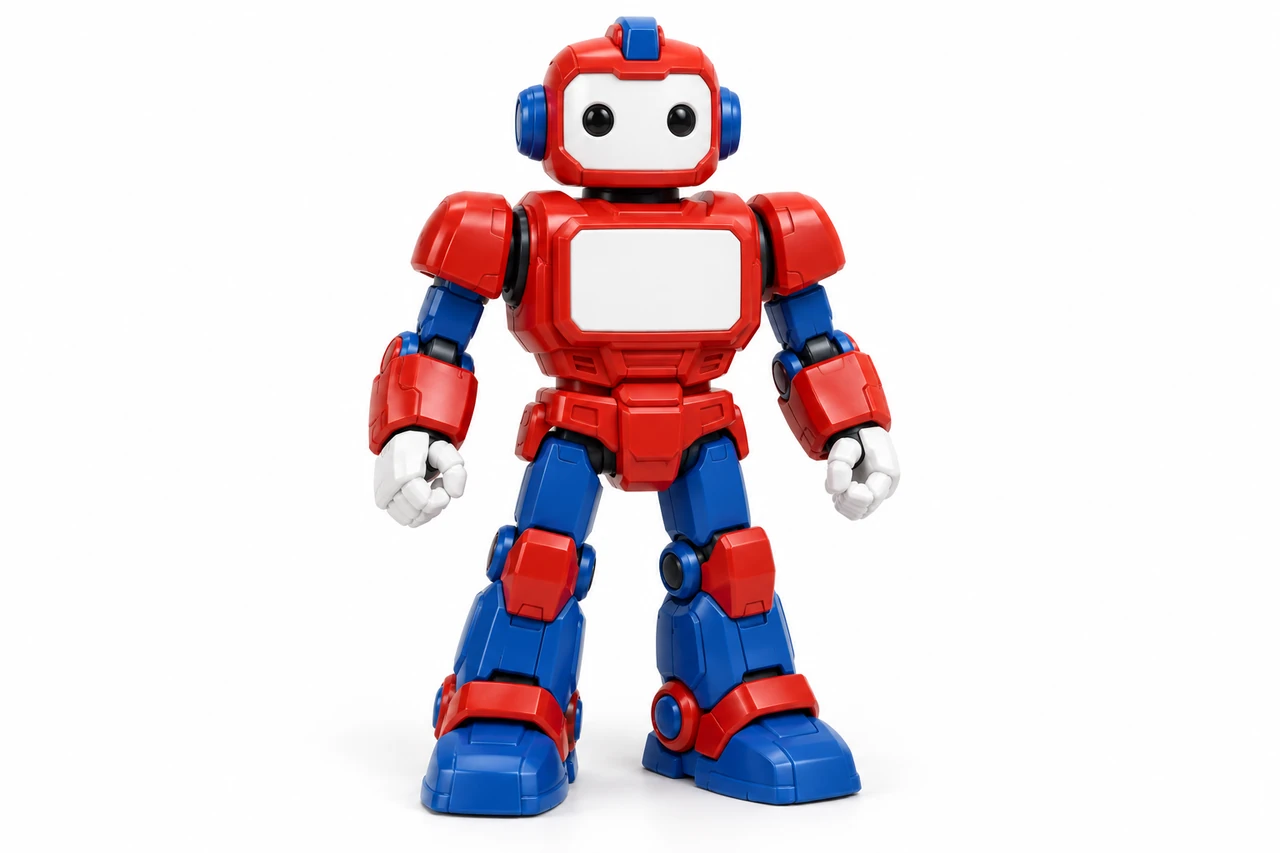
Actual white-key output showing transparency in the robot's white details as well as the background.
Actual PNG export · Download this PNG

Key #FEFEFE · Tolerance 8 · Edge softness 3 · Spill removal 0

The robot's face and chest contain near-white pixels as well as the backdrop. This tool compares colors everywhere; it does not know that those panels belong to the toy. Reducing tolerance may retain some shaded whites, but cannot separate two pixels with the same color. For this source, a hand-edited mask or a different background is a better way to preserve all the white details.

What each control changes

ControlUse it forWatch for
Key colorSelecting the exact background shade to remove. Pick from the original source rather than an edge.White or black can also occur in the subject. Picking a color does not select a connected background region.
ToleranceIncluding nearby shades from small lighting or compression differences.Higher tolerance removes a wider range everywhere, including colors inside the subject.
Edge softnessMaking the color threshold less abrupt around anti-aliased edges.Too much softness makes the retained outline translucent. It cannot recover already deleted detail.
Spill removalReducing a green or blue tint around partially transparent edges.Use only as needed. It changes edge color and is not a replacement for selecting the right key.
Preview backgroundChecking the same transparent result against light, dark or a custom color.The PNG export stays transparent. A solid preview background is not part of the download.

Check the symptom before increasing tolerance

The background disappears, but so do parts of the logo

Compare the missing areas with the chosen key. Matching foreground colors are removed too, even when they are surrounded by a completely different color. Lower tolerance if the shades differ. If they are identical, use a mask in an image editor or choose a source with a more distinct backdrop.

A pale or colored halo remains

The outline may already be a blend of subject and background, especially in JPEGs. Try a small increase in tolerance, then modest edge softness. Check over the intended destination color. Avoid removing the outline completely just to make one preview look cleaner.

The background has patches that will not clear together

A gradient, shadow or photographed scene contains more than one color. Widening the range far enough to remove all of it can erase the subject. Use this tool for fairly uniform colors; use a masking workflow for a complex still image. For a complex video background, use the separate AI video remover.

The downloaded file looks white in my viewer

Some viewers display transparent pixels on white. Place the PNG over a dark layer before deciding that transparency is missing. Reopen the exported PNG rather than a screenshot of the preview, and check that another app has not converted it to JPEG.

The result is smaller than my original

This tool's image processing uses a maximum longest edge of 1,280 pixels for both preview and PNG export. It keeps the aspect ratio and does not enlarge smaller sources. Keep your original if you need a higher-resolution print asset.

Local processing, with clear file limits

Opening your own image does not send its file bytes to a VideoCutout processing endpoint. Decoding, color removal, preview and PNG creation run in the browser. The sample buttons fetch public demonstration images; they do not upload your files. The website can still make ordinary requests for its interface and analytics.

Image mode accepts JPG, PNG and WebP up to 40 MB and 24 megapixels. It uses WebGL when available, with a Canvas fallback for images. Results are exported as PNG with a longest edge of up to 1,280 pixels. This page handles one still image at a time; it is not an animated GIF processor or a batch photo editor.

About the file format: PNG transparency reference.

A green or blue screen video

Use the local chroma-key tool to adjust moving footage and check supported WebM export.

Open green screen remover

An animated GIF

Keep the animation sequence and choose a rebuilt GIF or transparent WebM after background removal.

Remove a GIF background

A transparent video for another project

Check alpha, output formats and compatibility before choosing a website or editor workflow.

Read the transparent video guide