
01
Upload WebM
Choose a source WebM and review its duration and dimensions.
WebM can be both the uploaded source and the transparent result. It is especially useful for web overlays, product callouts, animated characters, and interface motion.
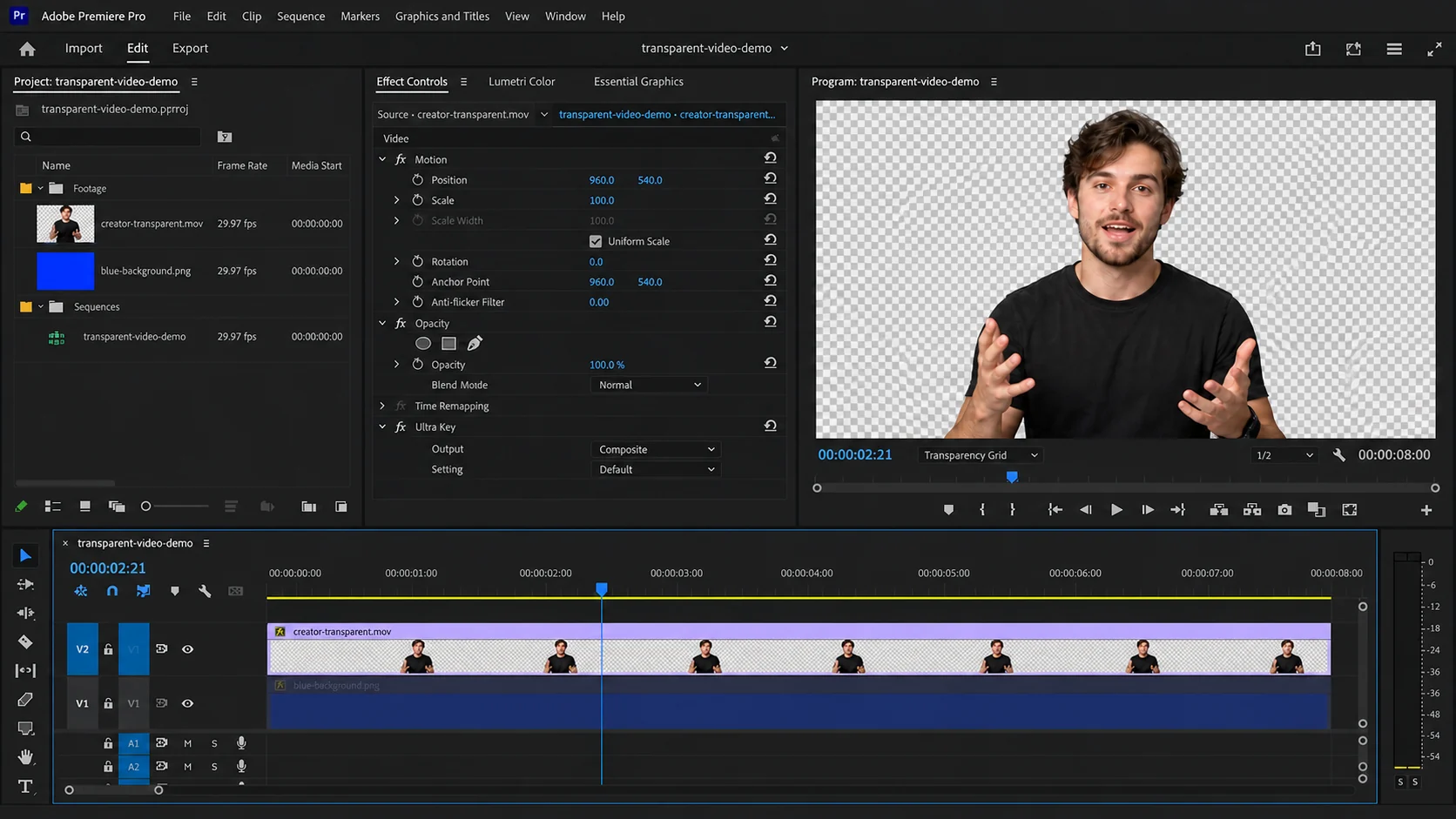
Validate the source, isolate the subject, and export the format you actually need.
Choose a source WebM and review its duration and dimensions.
AI follows the subject through the frames and removes the existing scene.
Use the result directly in a compatible website or compositing workflow.
Transparent WebM lets a moving subject sit over live page content. It is often more efficient than a transparent GIF and supports smoother partial transparency around edges.
Browser support is strong in modern environments, but individual editing applications may handle WebM and alpha differently. Keep a production master if the asset will move between several tools.
The file extension describes a container, not the exact video codec inside it. Two files with the same extension can decode differently, so the upload is validated before processing and difficult files may need to be re-encoded in a standard editor.
The source container does not determine the transparent delivery format. MP4, MOV, and WebM are accepted as inputs, while a transparent result is delivered as WebM and a result with a replacement image is delivered as a conventional composited video.
Use the highest-quality original available instead of a copy downloaded from a social platform. Keep the subject large enough to see, avoid aggressive compression, and prefer even lighting with visual separation between foreground and background.
Preview the beginning, middle, and end before upload. A clip that looks easy in its first frame may contain crossed hands, hair movement, camera cuts, fast rotation, or an object that briefly disappears behind another element.
The live remover accepts MP4, MOV, and WebM. Transparent mode returns WebM; custom-background mode accepts one JPG, PNG, or WebP image up to 10 MB. A still image is composited behind the isolated foreground—the product does not currently accept a replacement video.
The free trial supports one verified clip up to 5 seconds and 50 MB. Paid plans raise the limit to 60, 180, or 300 seconds and 200 or 500 MB depending on tier. Processing credits are rounded up in five-second blocks, so a 6-second clip uses 10 credits.
Yes. Supported WebM codecs can preserve an alpha channel for transparent browser video.
For color, edge softness, and compression, usually yes. GIF remains useful where simple legacy compatibility matters.
Yes. The video background remover accepts WebM input.
Credits follow processed duration and round up to the next five-second block. A clip from 1–5 seconds uses 5 credits, 6–10 seconds uses 10 credits, and the same rule continues for longer clips.
The verified free trial allows one clip up to 5 seconds and 50 MB. Depending on the paid tier, limits increase to 60, 180, or 300 seconds and 200 or 500 MB. Background images are limited to 10 MB.