
01
Upload the footage
Use MP4, MOV, or WebM footage with the person or object clearly visible.
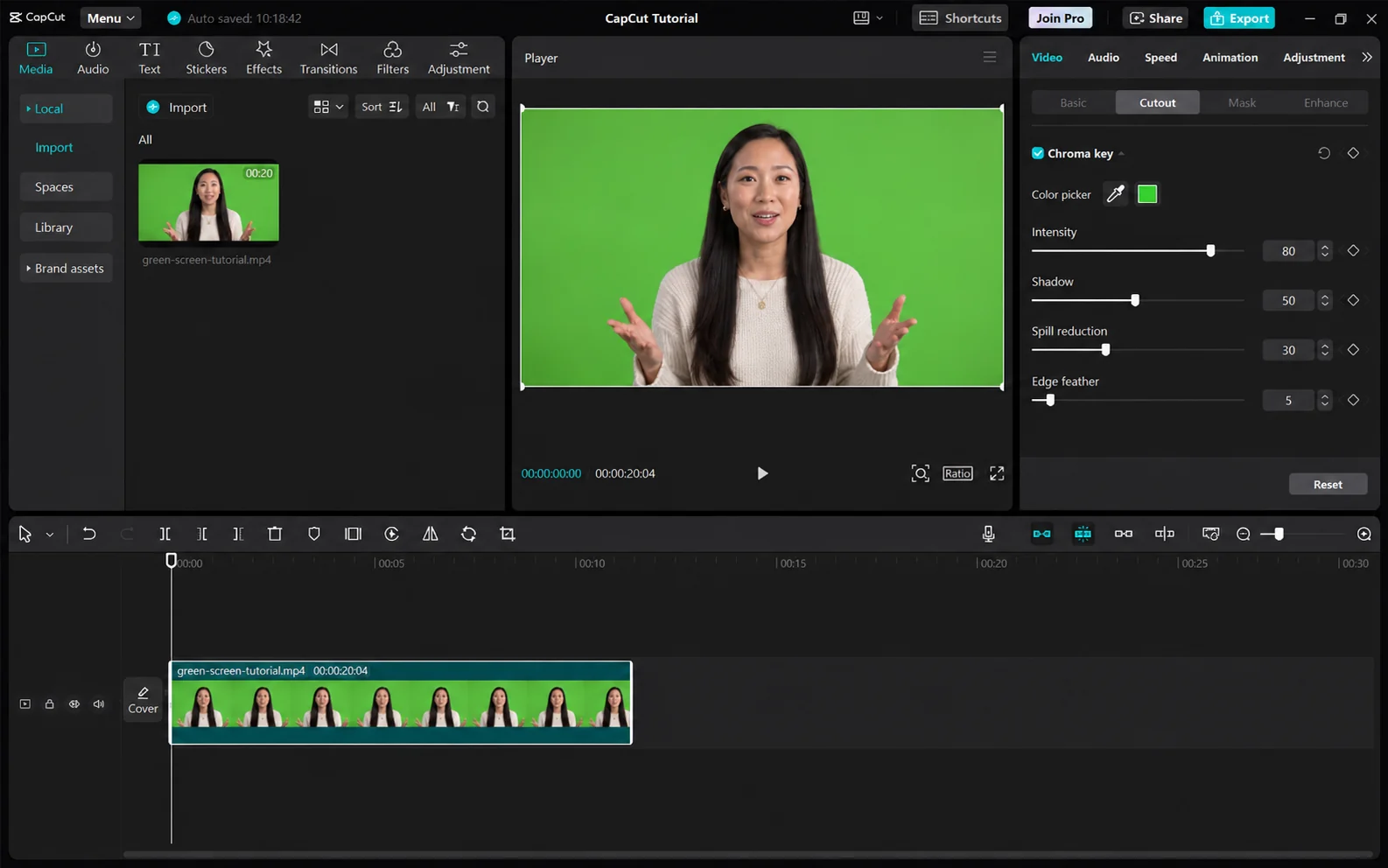
Traditional chroma key removes a chosen color. Our tool instead detects the foreground subject, which makes it useful when the screen is uneven, the subject wears green, or there was no green screen at all.
Validate the source, isolate the subject, and export the format you actually need.
Use MP4, MOV, or WebM footage with the person or object clearly visible.
The model estimates the foreground directly instead of deleting a selected shade of green.
Download transparent WebM or add a JPG, PNG, or WebP image as the new background.
A well-lit studio green screen can produce excellent results in a professional editor because the operator can adjust spill, tolerance, and edge softness. AI background removal is faster when footage was captured casually or when no clean screen exists.
This online tool does not pretend to expose professional chroma-key controls. It focuses on automatic subject separation and a simple export workflow.
Loose hair, glass, smoke, fast hands, and large areas of motion blur are difficult for both chroma key and AI matting. Review several points in the clip before exporting.
Automatic matting follows the visible foreground instead of asking you to draw a mask on every frame. It is designed for people, products, and other clearly separated subjects in ordinary footage, including clips recorded without a green screen.
The result still depends on the source. Fine hair, motion blur, transparent objects, deep shadows, and temporary occlusion should be checked across the full timeline rather than judged from a single preview frame.
Use the highest-quality original available instead of a copy downloaded from a social platform. Keep the subject large enough to see, avoid aggressive compression, and prefer even lighting with visual separation between foreground and background.
Preview the beginning, middle, and end before upload. A clip that looks easy in its first frame may contain crossed hands, hair movement, camera cuts, fast rotation, or an object that briefly disappears behind another element.
The live remover accepts MP4, MOV, and WebM. Transparent mode returns WebM; custom-background mode accepts one JPG, PNG, or WebP image up to 10 MB. A still image is composited behind the isolated foreground—the product does not currently accept a replacement video.
The free trial supports one verified clip up to 5 seconds and 50 MB. Paid plans raise the limit to 60, 180, or 300 seconds and 200 or 500 MB depending on tier. Processing credits are rounded up in five-second blocks, so a 6-second clip uses 10 credits.
No. It uses AI foreground segmentation rather than a color picker, tolerance, spill, or feather controls.
Yes. The subject can be recorded against an ordinary room, wall, outdoor scene, or studio background.
Choose transparent mode to export WebM. Standard MP4 does not preserve an alpha channel in this workflow.
Credits follow processed duration and round up to the next five-second block. A clip from 1–5 seconds uses 5 credits, 6–10 seconds uses 10 credits, and the same rule continues for longer clips.
The verified free trial allows one clip up to 5 seconds and 50 MB. Depending on the paid tier, limits increase to 60, 180, or 300 seconds and 200 or 500 MB. Background images are limited to 10 MB.