
01
Create a video project
Open a video canvas in Adobe Express.
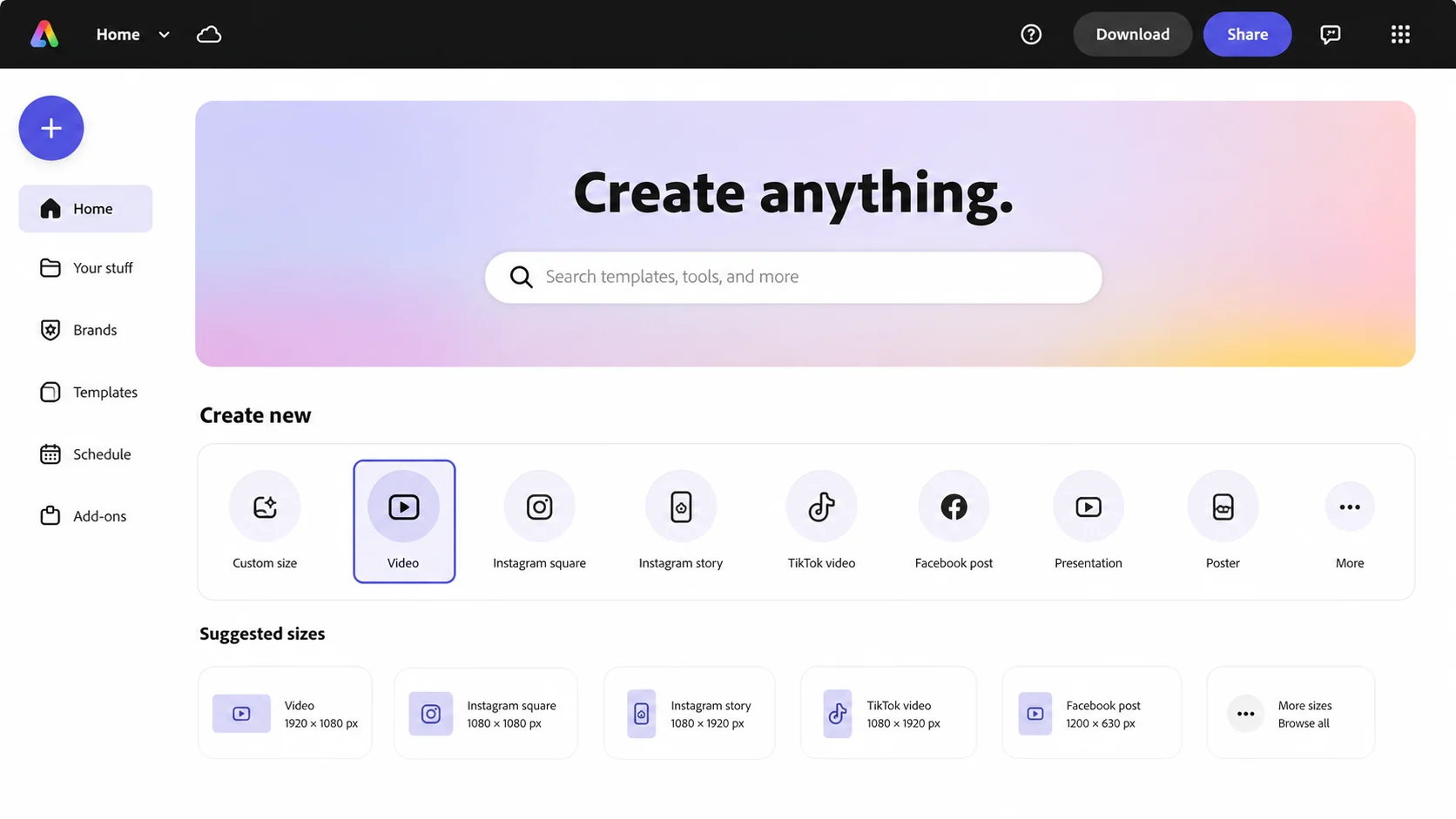
Adobe Express is useful when background removal is part of a larger design. A focused remover is more direct when you need a transparent foreground asset or a simple replacement scene without building a full design project.
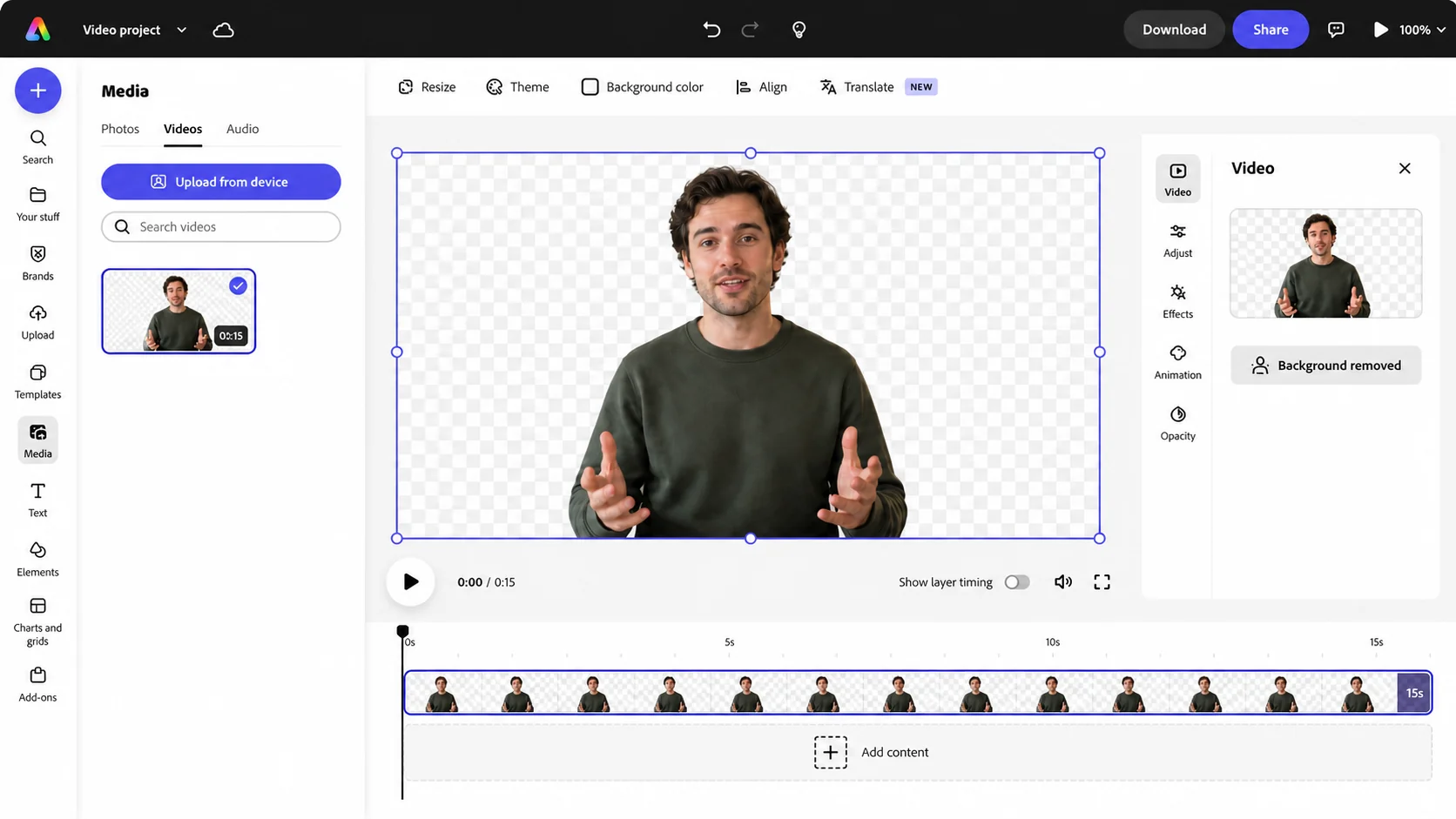
Open a video canvas in Adobe Express.
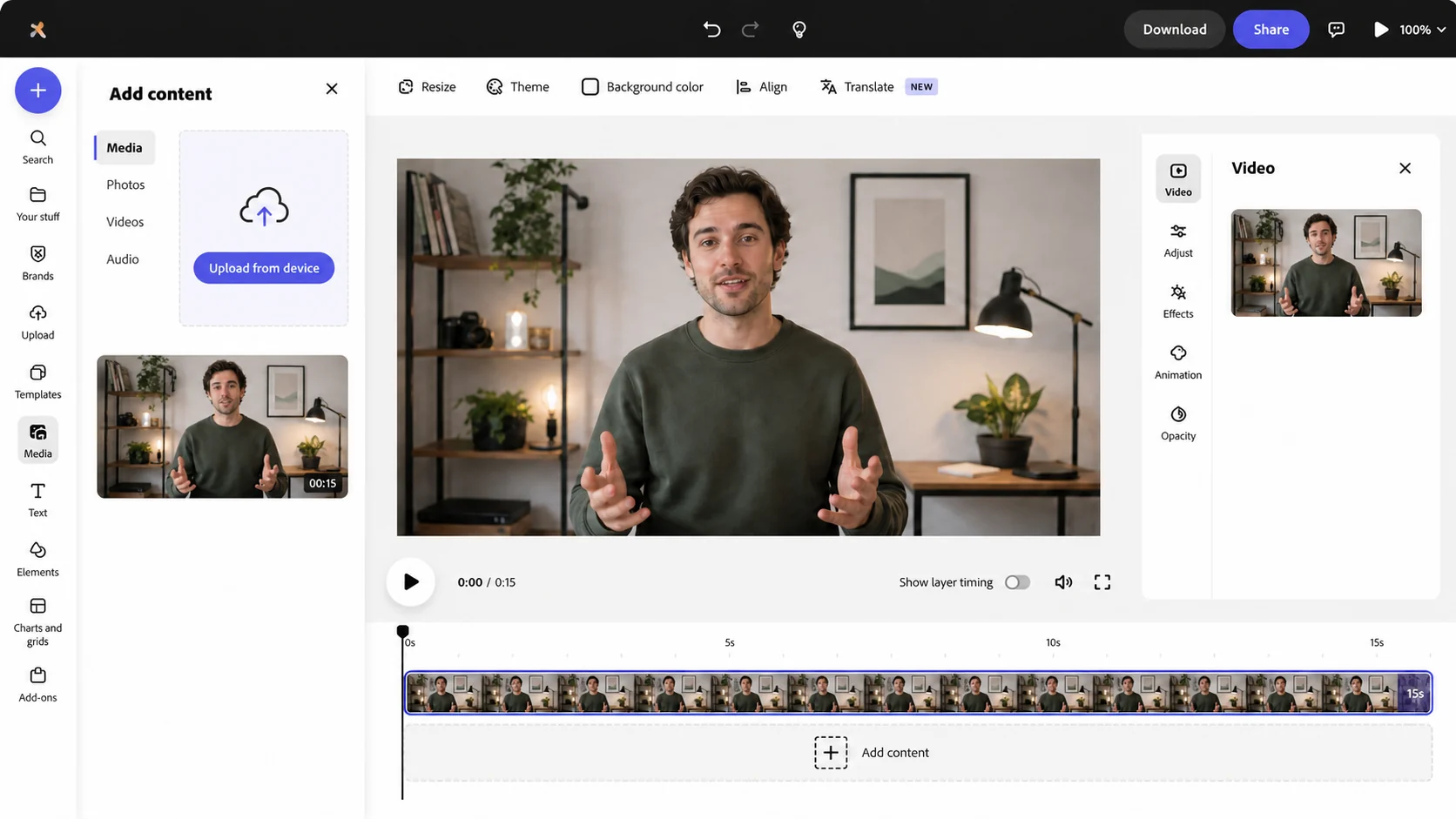
Upload the video and place it on the canvas.
Select the clip and start the automatic background removal action.
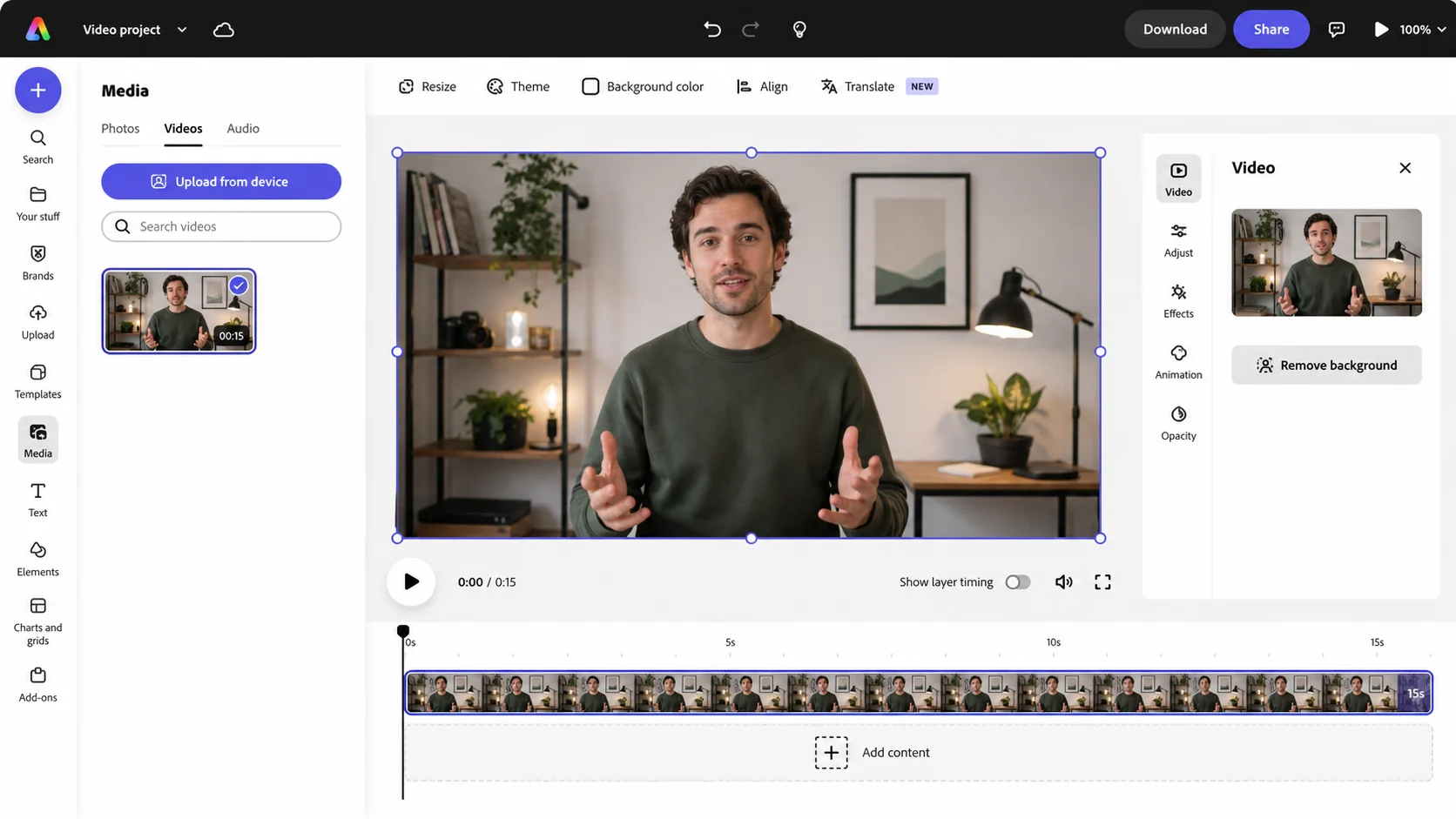
Inspect the result, add a design background if needed, and export.
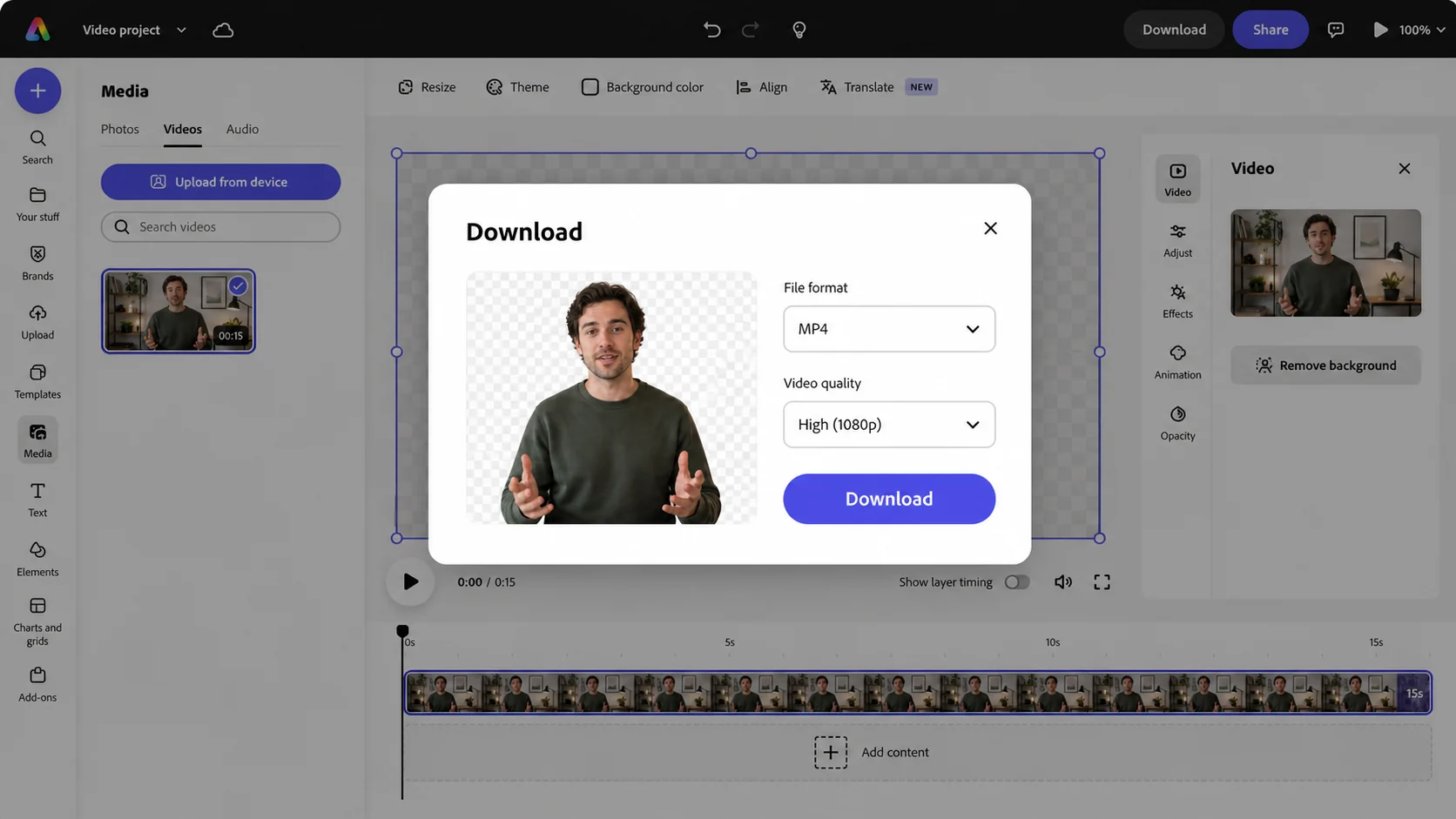
Use Adobe Express when you want to finish the entire design in one browser project. Use a focused remover when the foreground video needs to travel into several tools or pages.
A useful comparison starts with the same source clip and the same required destination. Edge stability, processing time, allowed duration, export format, watermark behavior, and the steps required after download matter more than a generic feature checklist.
Competitor plans and interfaces change, so this page avoids inventing a current price or guarantee. Verify time-sensitive details on the provider site and use the comparison to decide what you need to test yourself.
Use the highest-quality original available instead of a copy downloaded from a social platform. Keep the subject large enough to see, avoid aggressive compression, and prefer even lighting with visual separation between foreground and background.
Preview the beginning, middle, and end before upload. A clip that looks easy in its first frame may contain crossed hands, hair movement, camera cuts, fast rotation, or an object that briefly disappears behind another element.
The live remover accepts MP4, MOV, and WebM. Transparent mode returns WebM; custom-background mode accepts one JPG, PNG, or WebP image up to 10 MB. A still image is composited behind the isolated foreground—the product does not currently accept a replacement video.
The free trial supports one verified clip up to 5 seconds and 50 MB. Paid plans raise the limit to 60, 180, or 300 seconds and 200 or 500 MB depending on tier. Processing credits are rounded up in five-second blocks, so a 6-second clip uses 10 credits.
Adobe Express has offered video background removal in supported workflows. Availability and limits can vary by account, plan, and product version.
No. This is an independent comparison and alternative workflow.
A focused transparent video workflow is more direct when WebM alpha is the required deliverable.
Credits follow processed duration and round up to the next five-second block. A clip from 1–5 seconds uses 5 credits, 6–10 seconds uses 10 credits, and the same rule continues for longer clips.
The verified free trial allows one clip up to 5 seconds and 50 MB. Depending on the paid tier, limits increase to 60, 180, or 300 seconds and 200 or 500 MB. Background images are limited to 10 MB.