
01
Add MP4, MOV, or WebM
Upload a supported source file and preview the first frames before processing.
Upload a video, isolate the foreground automatically, and export a WebM that preserves transparency. Use it as an overlay without carrying a colored rectangle into the next design.
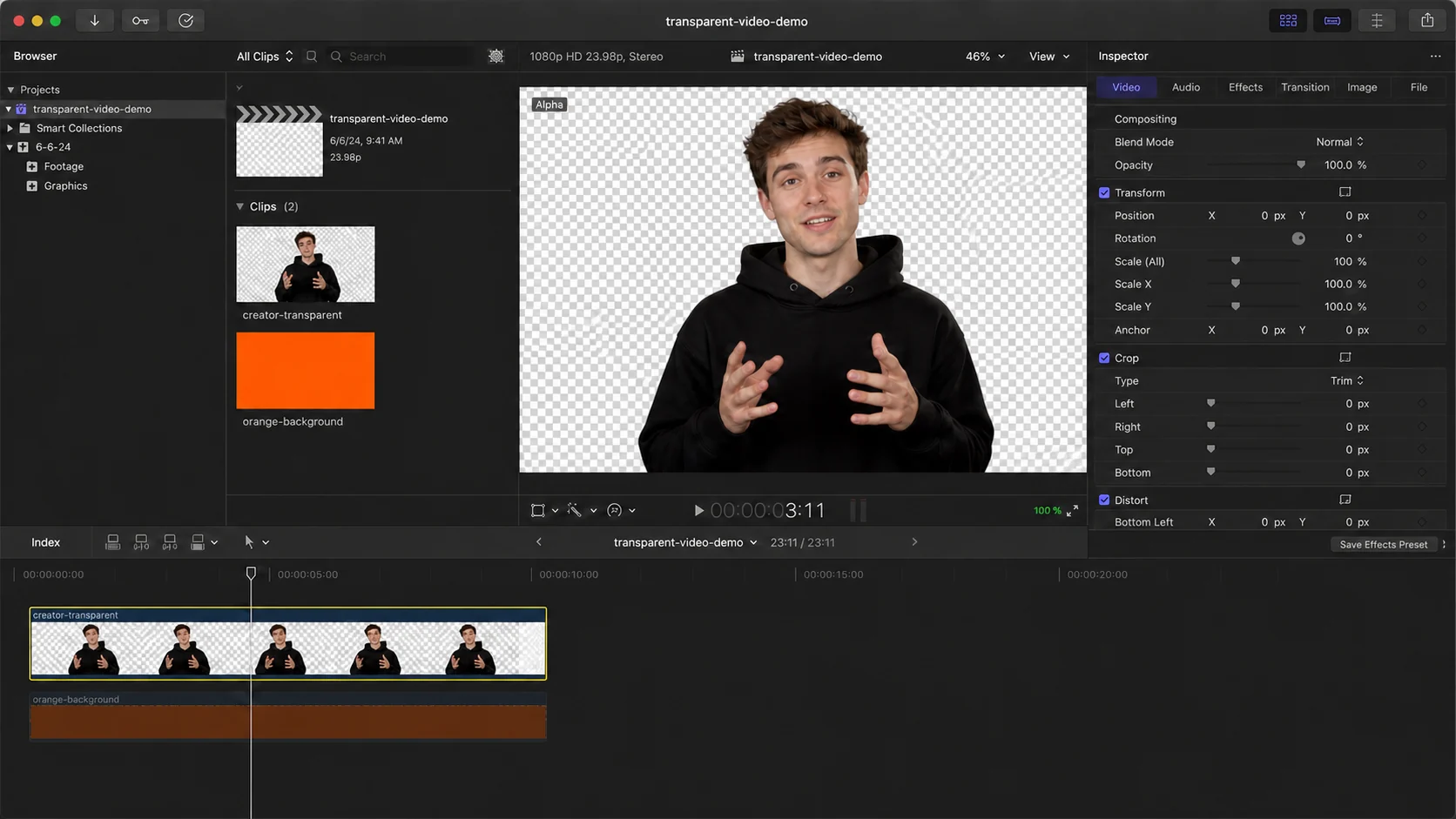
Validate the source, isolate the subject, and export the format you actually need.
Upload a supported source file and preview the first frames before processing.
The background is removed while the subject and edge detail are retained.
Place the result over a page, image, slide, or video composition.
Most common MP4 workflows use H.264 or H.265 without an alpha channel. A transparent-looking MP4 normally has a background baked into the pixels.
WebM is the practical browser format for preserving alpha while keeping files suitable for modern web experiences. Desktop editors may also use ProRes 4444, but those files are much larger.
A checkerboard confirms that the background is transparent, but it can hide edge halos. Test the result over contrasting colors before publishing.
Automatic matting follows the visible foreground instead of asking you to draw a mask on every frame. It is designed for people, products, and other clearly separated subjects in ordinary footage, including clips recorded without a green screen.
The result still depends on the source. Fine hair, motion blur, transparent objects, deep shadows, and temporary occlusion should be checked across the full timeline rather than judged from a single preview frame.
Use the highest-quality original available instead of a copy downloaded from a social platform. Keep the subject large enough to see, avoid aggressive compression, and prefer even lighting with visual separation between foreground and background.
Preview the beginning, middle, and end before upload. A clip that looks easy in its first frame may contain crossed hands, hair movement, camera cuts, fast rotation, or an object that briefly disappears behind another element.
The live remover accepts MP4, MOV, and WebM. Transparent mode returns WebM; custom-background mode accepts one JPG, PNG, or WebP image up to 10 MB. A still image is composited behind the isolated foreground—the product does not currently accept a replacement video.
The free trial supports one verified clip up to 5 seconds and 50 MB. Paid plans raise the limit to 60, 180, or 300 seconds and 200 or 500 MB depending on tier. Processing credits are rounded up in five-second blocks, so a 6-second clip uses 10 credits.
Not in the standard H.264 MP4 workflow used by most browsers and social platforms. Export WebM with alpha for transparent web video.
Modern websites, browser-based presentations, motion graphics workflows, and editors that support WebM alpha.
The checkerboard is a preview convention that indicates empty transparent pixels; it is not part of the exported background.
Credits follow processed duration and round up to the next five-second block. A clip from 1–5 seconds uses 5 credits, 6–10 seconds uses 10 credits, and the same rule continues for longer clips.
The verified free trial allows one clip up to 5 seconds and 50 MB. Depending on the paid tier, limits increase to 60, 180, or 300 seconds and 200 or 500 MB. Background images are limited to 10 MB.