After Effects alpha workflow · 13 min read

How to Export Transparent Video in After Effects

Updated October 4, 2026

After Effects can export transparent video only when two conditions are true: the composition contains transparent pixels, and the selected output format and codec preserve an alpha channel. A checkerboard in the Composition panel confirms empty areas before render, but it does not guarantee the file will contain alpha. In the Render Queue, choose RGB + Alpha and an alpha-capable codec such as Apple ProRes 4444, then decide whether the receiving application expects Straight (Unmatted) or Premultiplied alpha. Standard H.264 MP4 delivery does not carry this alpha workflow. This guide explains each setting, why exports turn black, how edge halos happen, and how to verify the rendered file rather than trusting the preview.

Workflow illustration showing RGB plus Alpha export settings in After Effects
Workflow illustration. Interface details may vary by app version.
Transparency Grid
RGB + Alpha
Straight (Unmatted)
Apple ProRes 4444
Alpha export checklist

Verify transparency before, during, and after render

01

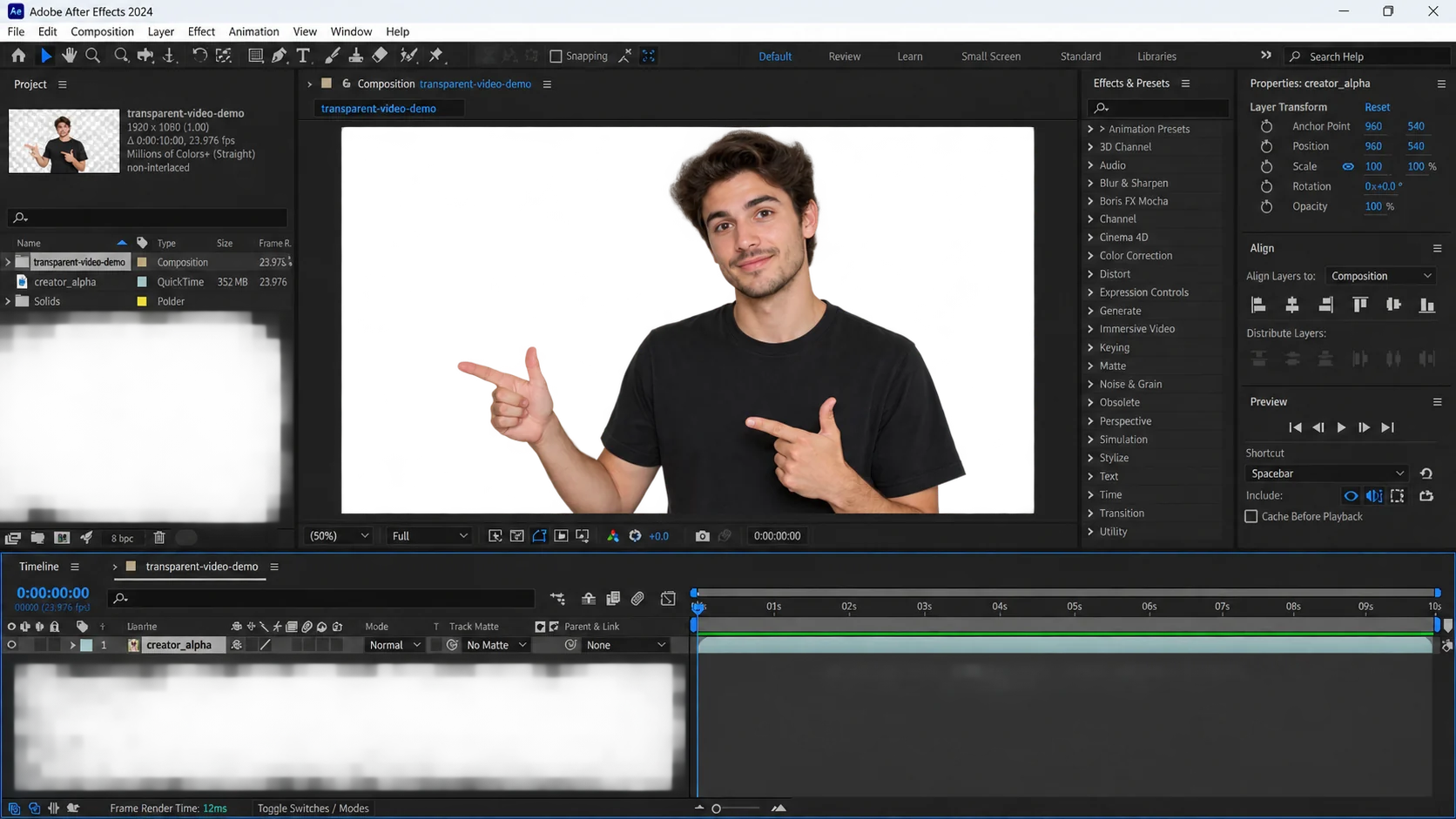
Confirm the composition is transparent

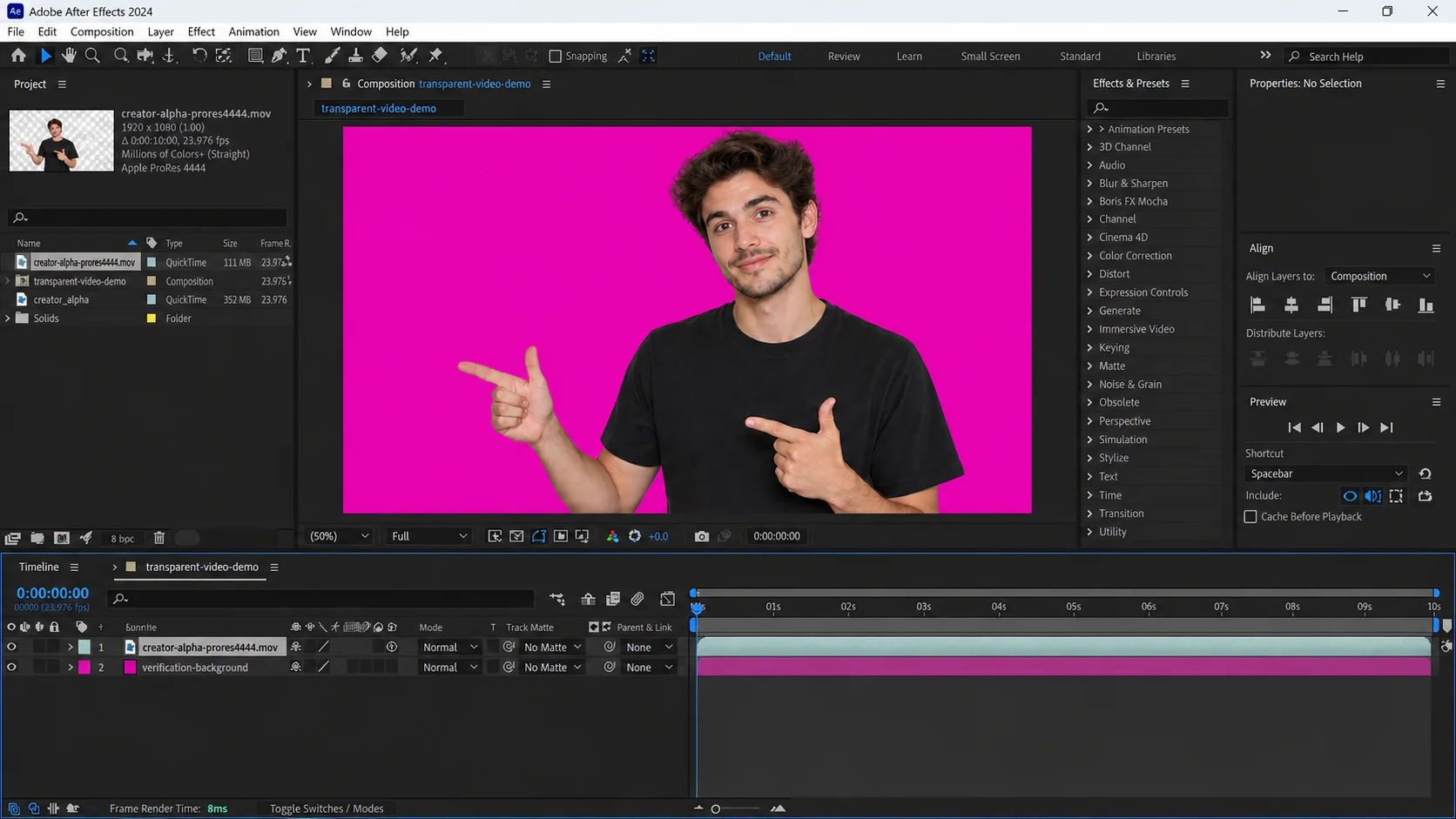
Disable or remove every opaque background layer and enable the Transparency Grid in the Composition panel. The checkerboard must appear wherever the final file should be transparent. If a solid, shape, precomp, or footage layer still fills the frame, export settings cannot restore transparency later.

Step illustration of a transparent After Effects composition
02

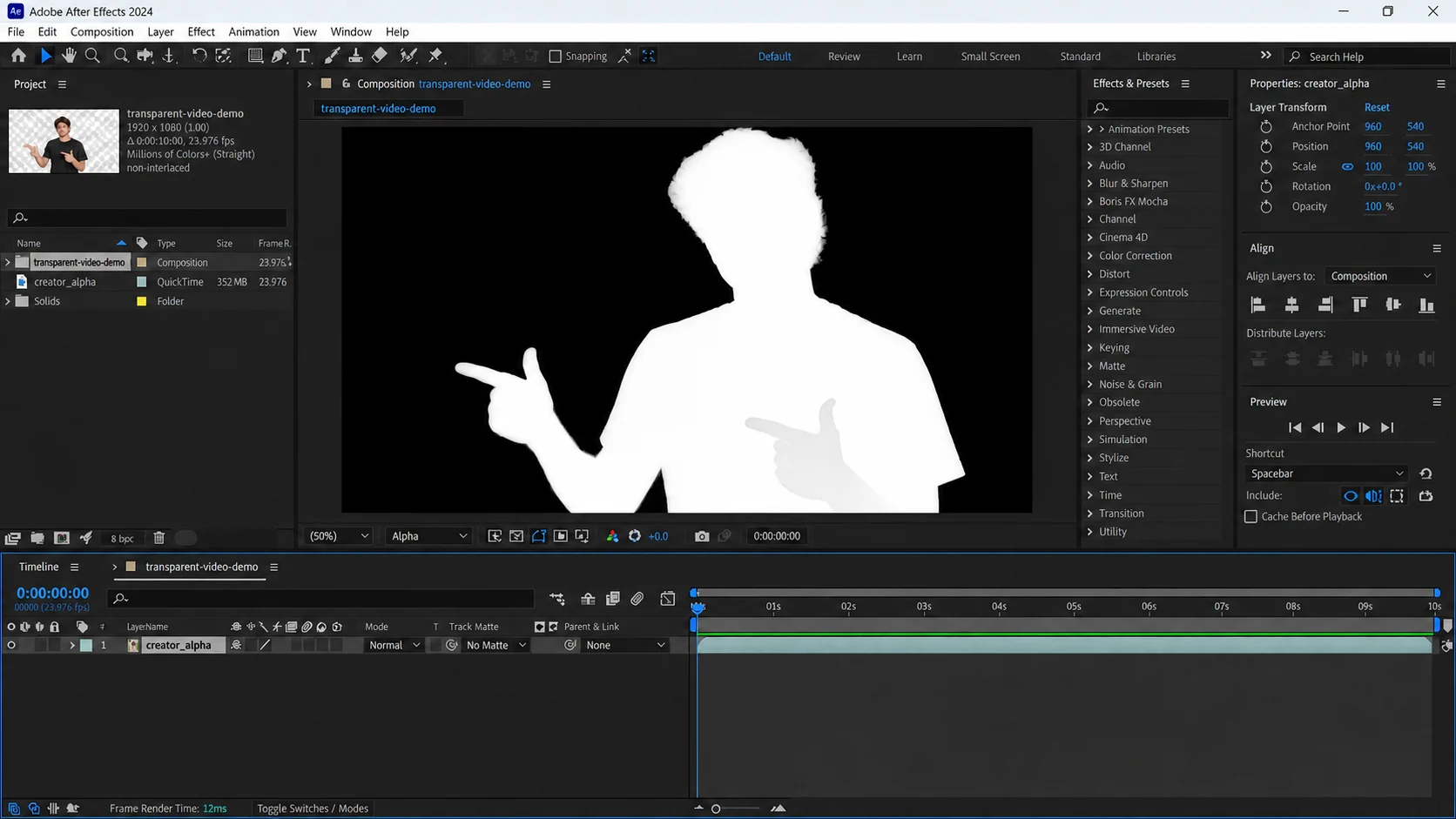
Inspect the alpha channel

Switch the viewer channel from RGB to Alpha to inspect the matte directly. White represents opaque pixels, black represents transparent pixels, and gray represents partial transparency. Look for holes in the subject, background noise, and unintended soft areas before rendering.

Step illustration of an alpha channel preview in After Effects
03

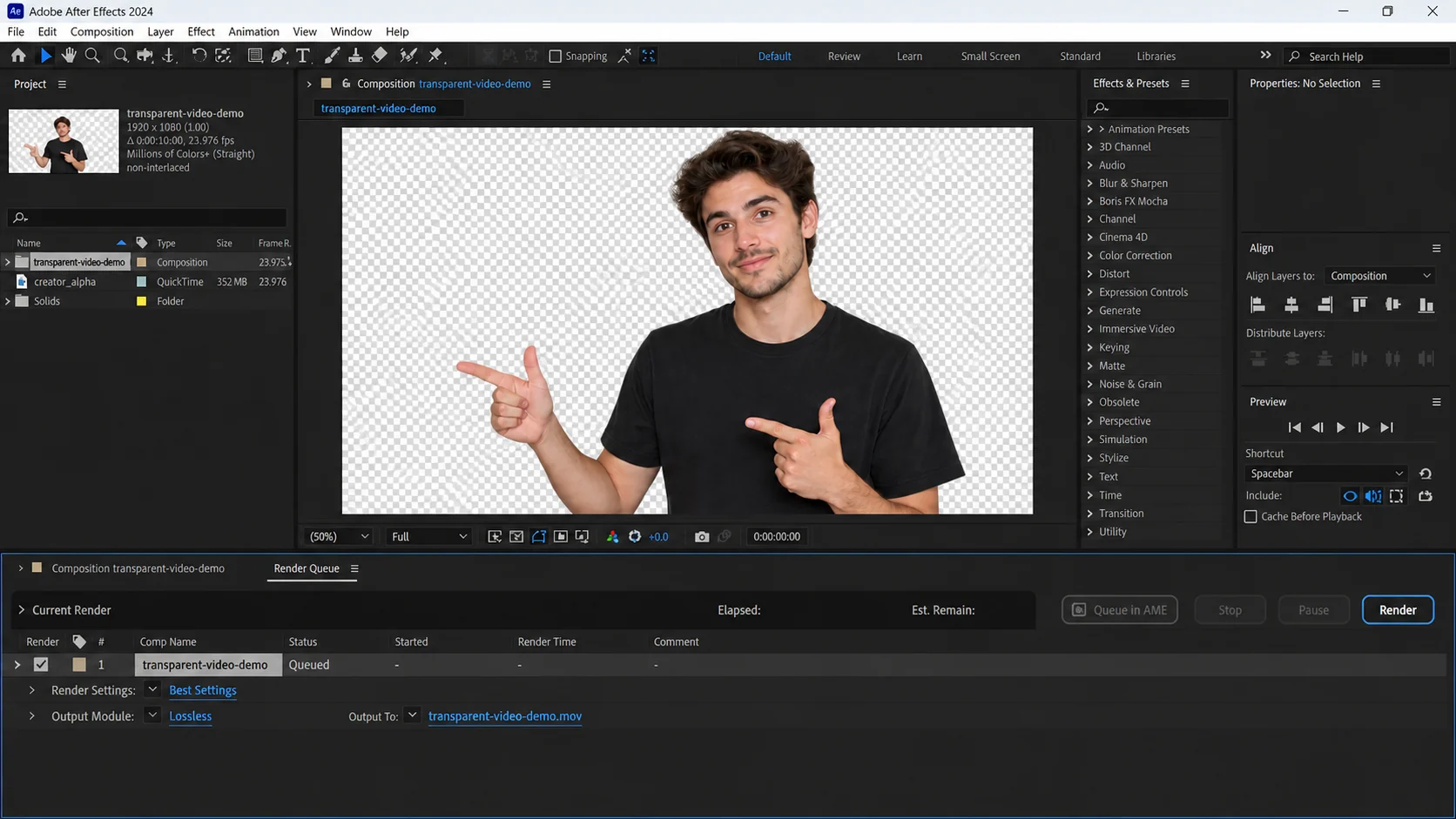
Add the composition to Render Queue

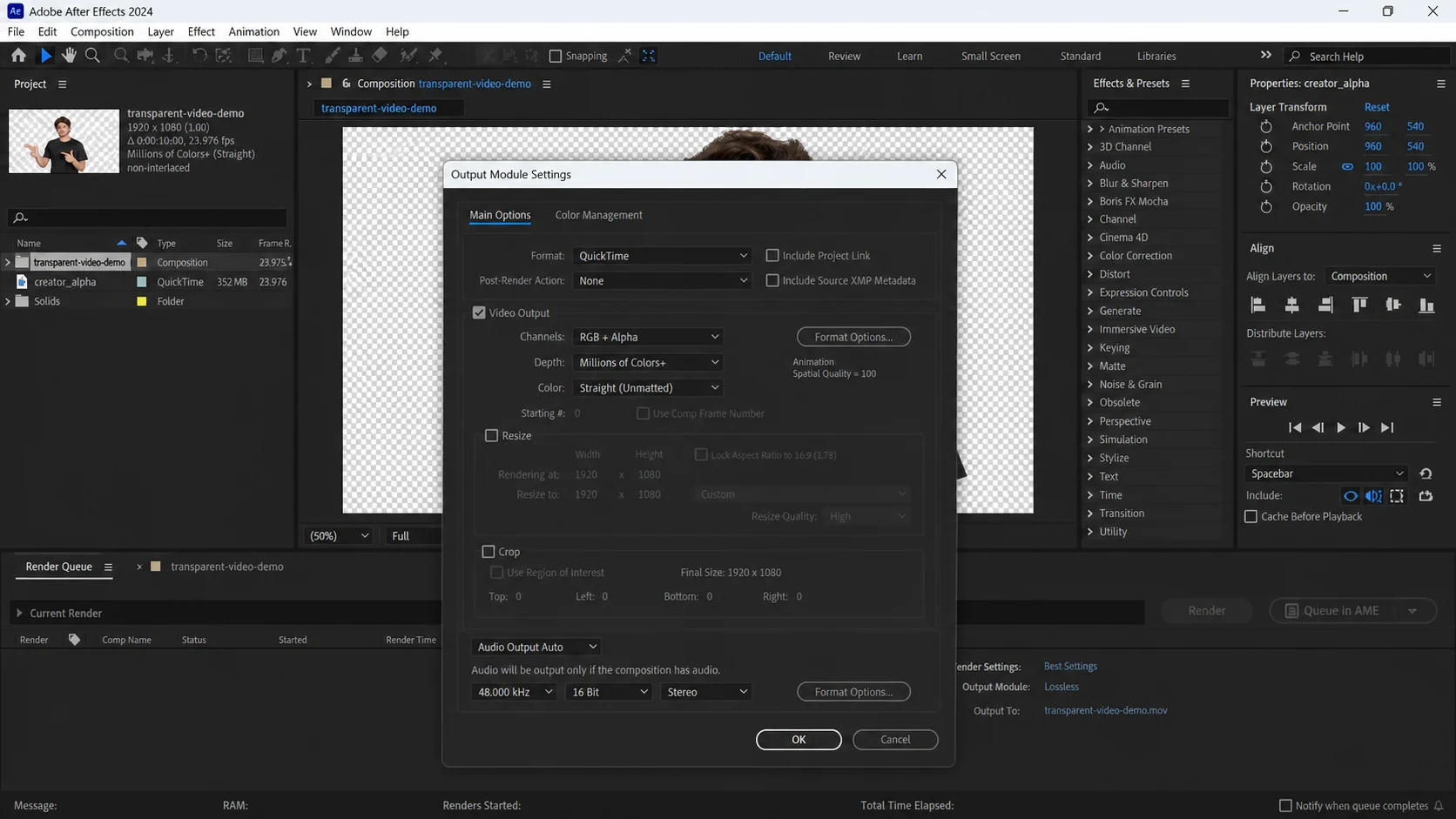
Add the composition to the Render Queue and open the Output Module settings. This route makes Channels, color treatment, format, and codec visible together. Confirm the render range and output dimensions so the alpha master matches the intended composition.

Step illustration of the After Effects Render Queue
04

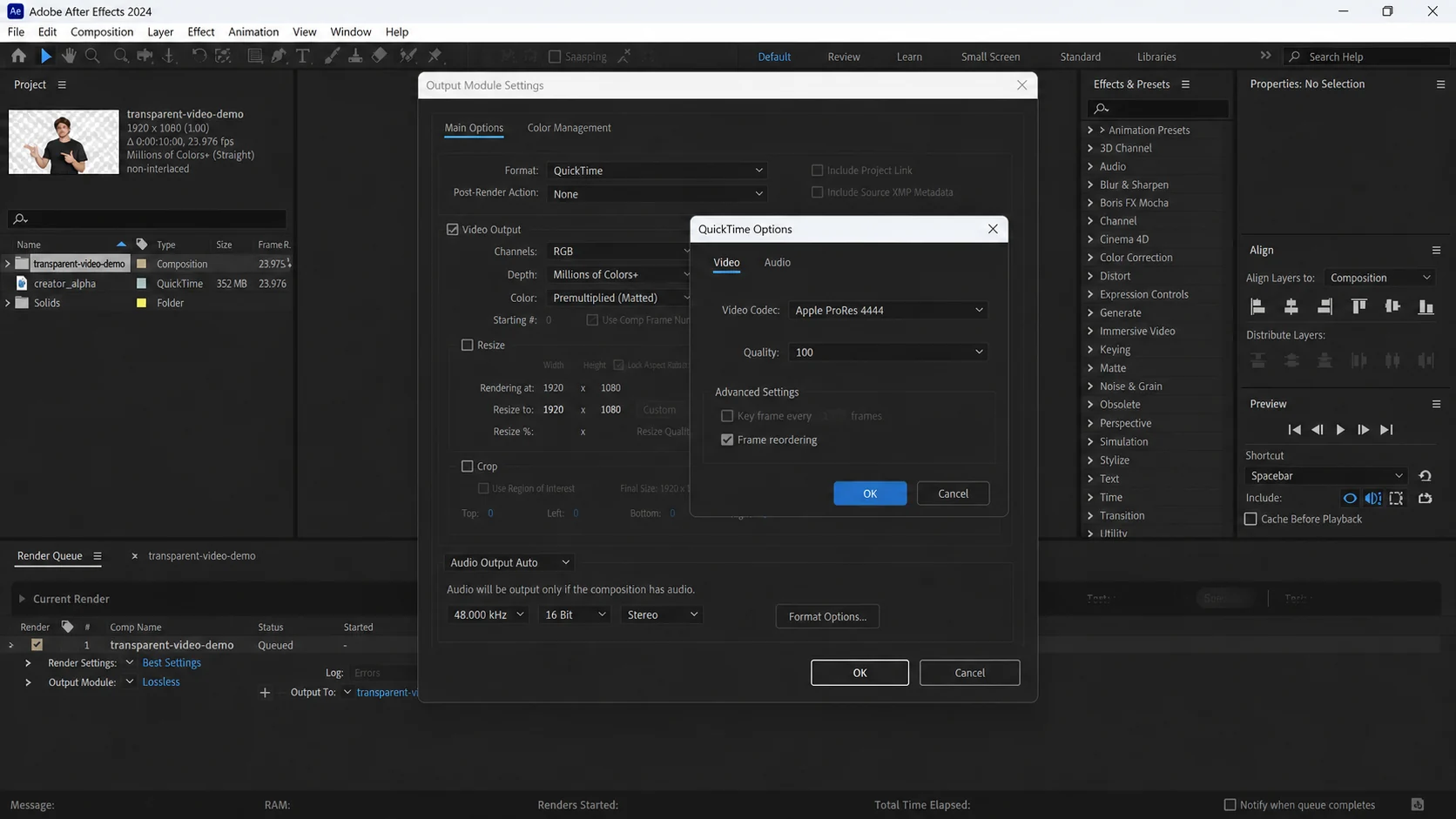
Choose RGB + Alpha

Set Channels to RGB + Alpha. In interfaces that show color depth, alpha-capable output is represented by Millions of Colors+. Use Straight (Unmatted) for a clean interchange master unless the next application specifically requires premultiplied color.

Step illustration showing RGB plus Alpha in After Effects Output Module settings
05

Select Apple ProRes 4444

Choose a container and codec that explicitly support alpha. QuickTime with Apple ProRes 4444 is a common high-quality production master. Do not switch back to a standard H.264 MP4 preset at the last moment, because that delivery path normally flattens or discards transparency.

Step illustration of Apple ProRes 4444 selected in After Effects
06

Reimport and verify

Render, reimport the resulting file, and place bright and dark solids behind it. Toggle the viewer to the imported file’s alpha channel as well. This reveals opaque black backgrounds, missing alpha, fringe colors, and edge treatment that looked acceptable over the checkerboard alone.

Step illustration of an After Effects alpha export verified over a color solid
Alpha channel fundamentals

Transparency is stored separately from RGB color

A conventional color image has red, green, and blue channels. Alpha is a fourth channel describing opacity: white is fully opaque, black is fully transparent, and gray carries partial coverage such as antialiased hair or motion blur. That is why seeing a checkerboard is only the first check—the output must include both RGB color and alpha data.

Straight alpha stores edge color independently from the matte, while premultiplied alpha stores RGB already multiplied against a matte color. Straight is usually easier for interchange because the receiving compositor can combine color and transparency itself. Premultiplied footage can work correctly when interpreted with the same matte color, but a mismatch often produces light or dark fringes.

  • Channels: RGB + Alpha
  • Depth: Millions of Colors+
  • Straight: color independent of matte
  • Premultiplied: color combined with a matte color
Format and codec choice

The codec—not the checkerboard—decides whether alpha survives

Apple ProRes 4444 is a practical production codec when you need a high-quality alpha master for another editing or compositing application. The file is much larger than an ordinary web delivery file, which is expected: it is designed for post-production quality rather than final streaming efficiency.

Standard H.264 in an MP4 container normally carries RGB video without the alpha channel required here. If the final destination is a browser, export an alpha-capable master first and create a compatible transparent web asset afterward. VideoCutout’s browser-oriented transparent output is WebM; confirm support in the exact browser, editor, or publishing system that will receive it.

Learn how transparent WebM works

When should you use this method?

After Effects is the right choice for an intentional alpha pipeline

Use After Effects when transparency comes from rotoscoping, masks, keyed footage, motion graphics, particles, or a multi-layer composite and the result must remain editable at high quality. It gives you direct inspection of the alpha channel and explicit control over render settings and interpretation.

This workflow is more technical than exporting a flattened social video. It is worth the setup for difficult edges, professional compositing, reusable motion-graphics elements, and alpha-capable handoff files. It is unnecessary when you only need a finished clip against one fixed background.

After Effects troubleshooting

Diagnose black renders, missing alpha, wrong codecs, and edge halos

If the Composition panel is transparent but the export is black, first inspect the rendered file’s alpha channel. Channels may have been set to RGB, the codec may not support alpha, or the receiving player may display transparent pixels over black. Reimport the file into After Effects over a colored solid before deciding which failure occurred.

If alpha is entirely missing, confirm RGB + Alpha and an alpha-capable codec in the actual Output Module applied to the render-queue item. A saved template or later format change can replace an earlier selection. Do not infer alpha from a `.mov` extension alone; the codec inside the container is what matters.

If a light or dark halo appears, check whether Straight footage was interpreted as premultiplied or vice versa. Correct the footage interpretation or render with the convention required downstream. Also inspect effects applied before the alpha is formed: blurred or color-treated edge pixels can contain a matte color even when the channel itself looks clean.

  • Black display: test over a color solid
  • No alpha: verify RGB + Alpha and codec
  • Wrong codec: inspect the actual output module
  • Edge halo: align straight/premultiplied interpretation
After Effects or VideoCutout?

Choose the compositor for control and the remover for a focused foreground pass

Use After Effects when you need roto, masks, keyed layers, motion graphics, edge treatment, and a high-quality alpha master in one controlled project. Its value is not merely removing a background; it is building and validating the complete composite pipeline.

Use VideoCutout first when you have a short source clip and want automatic foreground isolation before continuing in another application. It returns transparent WebM rather than a ProRes 4444 master, so confirm format support in the next tool. For a deeper explanation of browser-ready alpha and its limitations, see the Transparent Video Background guide.

Read the Transparent Video Background guideTry automatic foreground isolation

Questions

After Effects alpha export questions

Which After Effects codecs support alpha?+

Support depends on the codec and its selected options. Apple ProRes 4444 is a common alpha-capable production choice. Always verify that RGB + Alpha is available and reimport the rendered file rather than relying on its container extension.

Why does my transparent video export with black behind it?+

The file may have been rendered as RGB only, encoded with a codec that lacks alpha, or displayed by a player against black. Reimport it, inspect its alpha channel, and place a colored solid underneath to distinguish those cases.

Does H.264 MP4 support this transparency workflow?+

Standard H.264 MP4 does not preserve the alpha channel used by this workflow. Export an alpha-capable master such as ProRes 4444, or prepare a transparent WebM for a compatible web destination.

ProRes 4444 or transparent WebM?+

Use ProRes 4444 as a high-quality editing or compositing master. Use transparent WebM when the final environment supports browser-oriented alpha and smaller delivery files matter. Test either file in its real destination.

Should I choose Straight or Premultiplied alpha?+

Choose Straight for a general interchange master unless the receiving system specifically expects premultiplied footage. If edge fringes appear, confirm that the file is interpreted using the same alpha convention with which it was rendered.