Premiere Pro export workflow · 11 min read

How to Export Transparent Video in Premiere Pro

Updated October 4, 2026

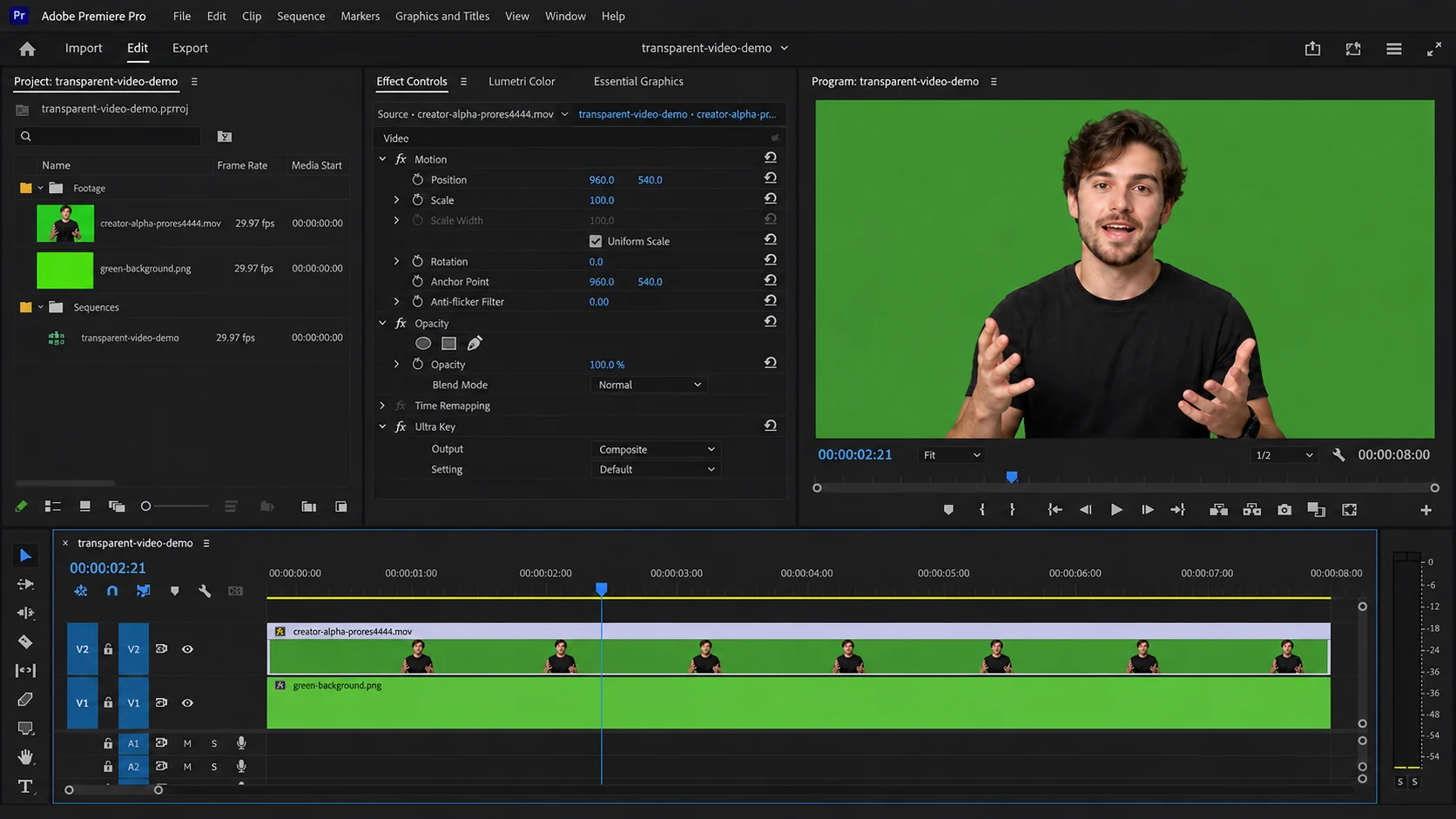
Premiere Pro can export a transparent video when the sequence really contains empty pixels and the selected export codec supports alpha. Remove or disable opaque background tracks, confirm the checkerboard in the Program Monitor, then choose an alpha-capable export path such as QuickTime with Apple ProRes 4444 and enable the available alpha option. Do not use the familiar H.264 MP4 preset for this job because that workflow normally flattens transparency. Premiere is well suited to editing, green-screen work, basic compositing, and delivery; After Effects is the stronger choice for detailed rotoscoping, difficult hair, and advanced matte repair. This guide covers the export, verification, tool choice, and black-background troubleshooting.

Workflow illustration of Premiere Pro alpha export settings with ProRes 4444
Workflow illustration. Interface details may vary by app version.
Checkerboard preview
QuickTime format
Apple ProRes 4444
Include Alpha Channel
Premiere alpha export workflow

Prepare the sequence, preserve alpha, and verify the file

01

Prepare the sequence

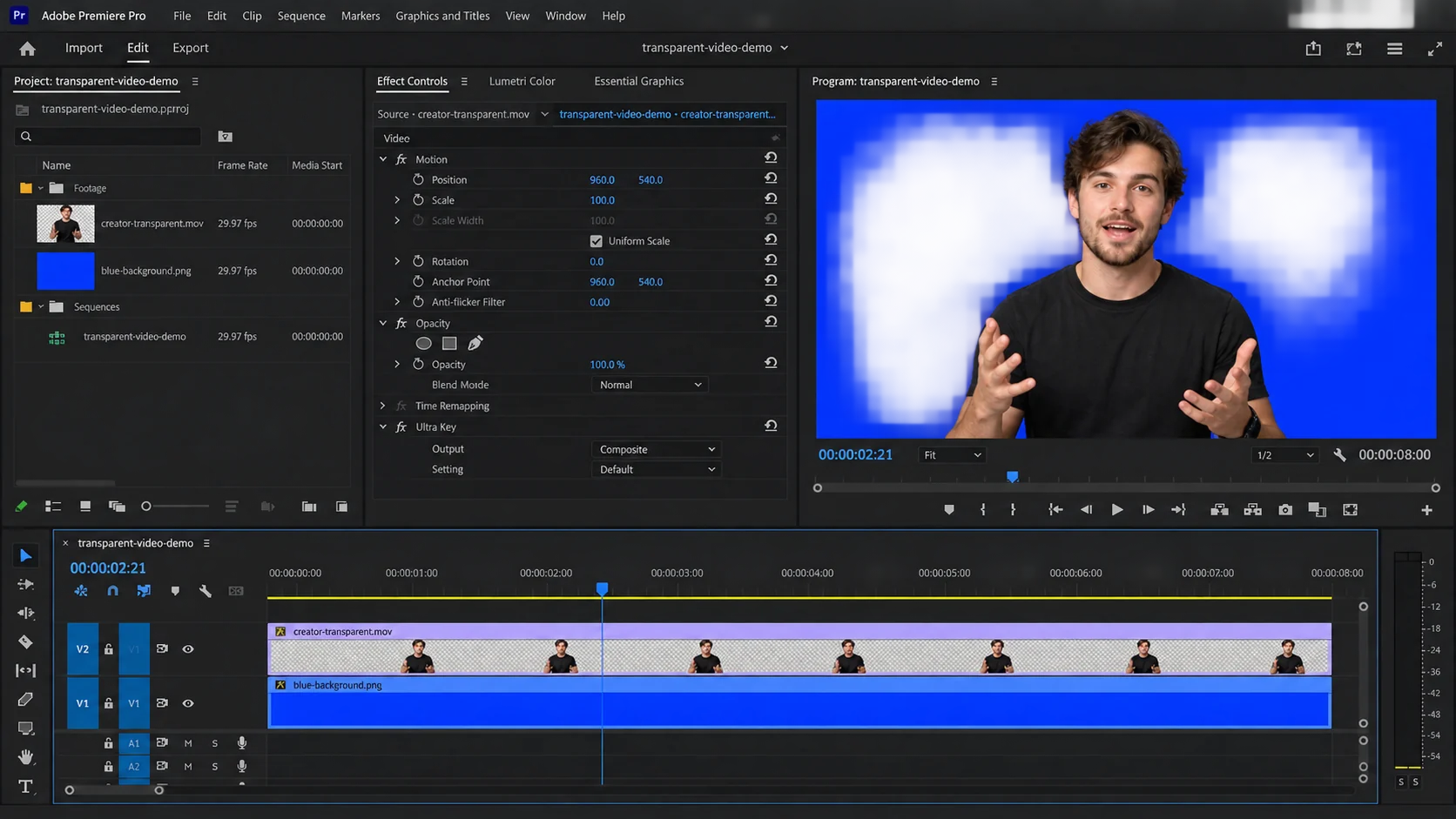
Remove, disable, or move every opaque background layer that should not be in the alpha master. Trim the work area and confirm the sequence dimensions and frame rate. The intended transparent region must be genuinely empty on the timeline before export.

Step illustration of a Premiere Pro timeline with an isolated foreground
02

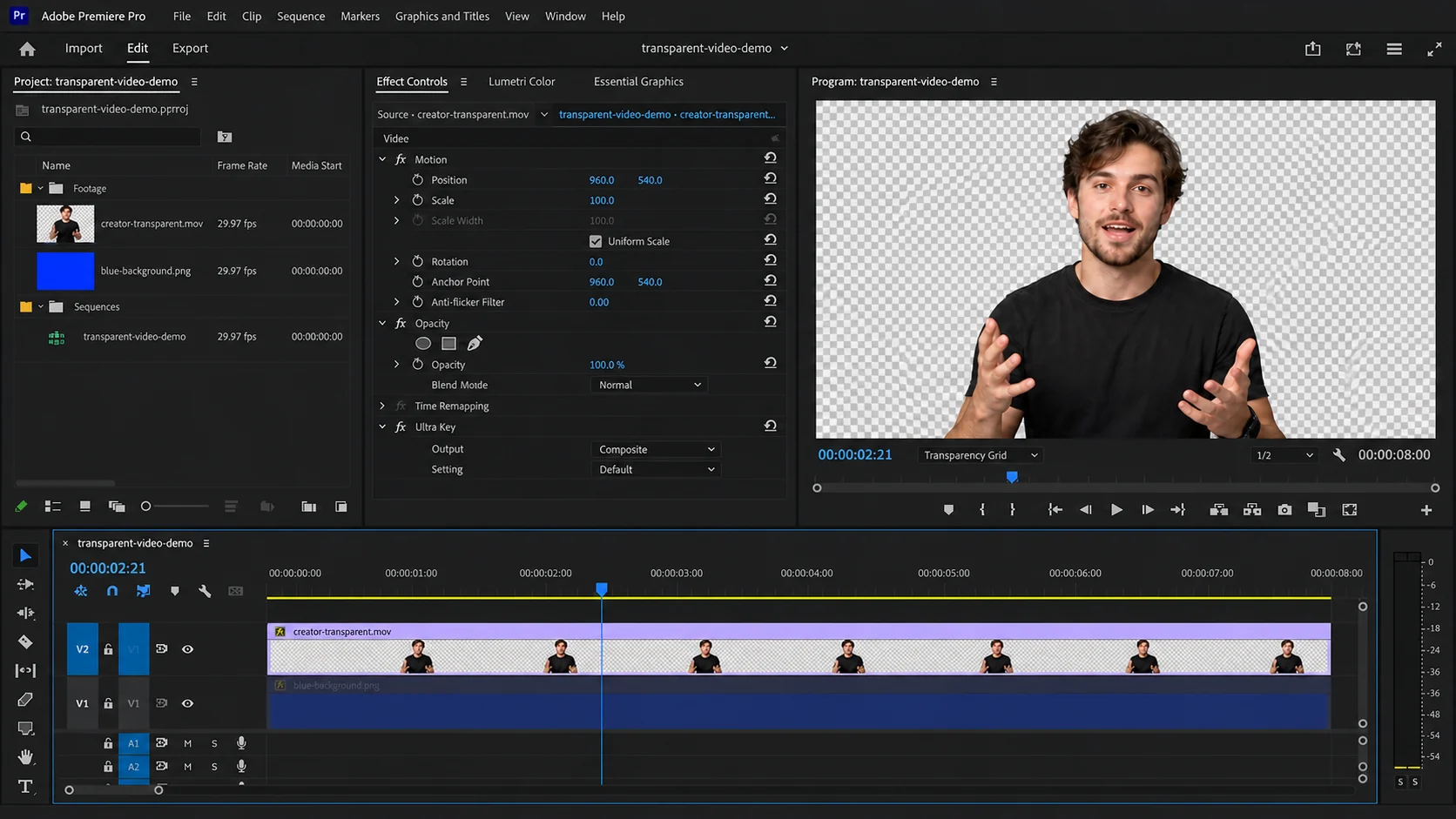
Confirm transparency

Enable the transparency grid in the Program Monitor and play the complete sequence. The checkerboard should appear outside the foreground on every frame. Watch transitions, nested sequences, titles, and disabled tracks for unexpected full-frame color.

Step illustration of a Premiere Pro checkerboard transparency preview
03

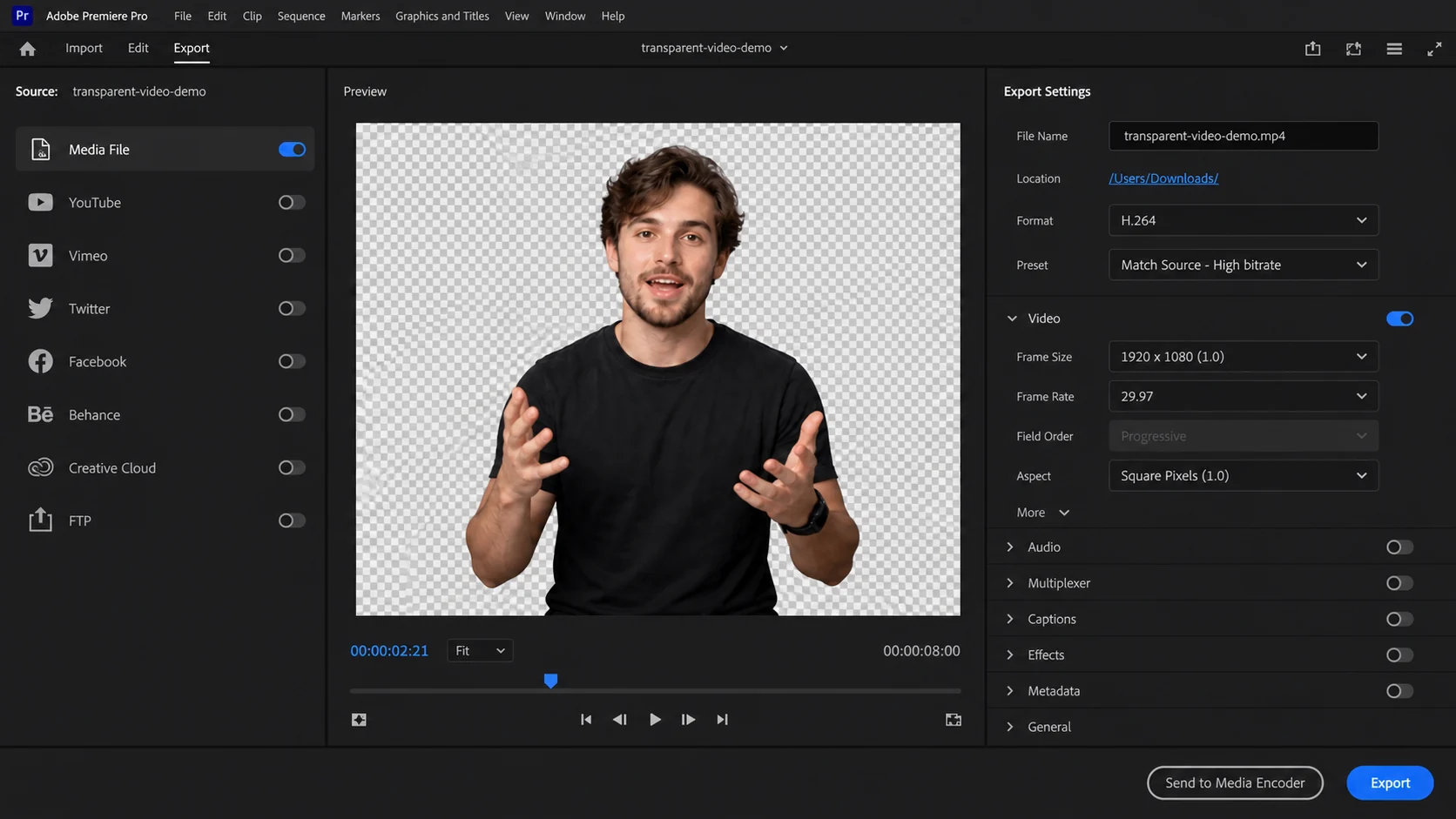
Open Export

Open Export and verify the source range before changing format. The default or previously used H.264 preset is designed for ordinary delivery, not this alpha master, so treat it only as a starting screen and inspect the real video settings.

Step illustration of the Premiere Pro Export workspace
04

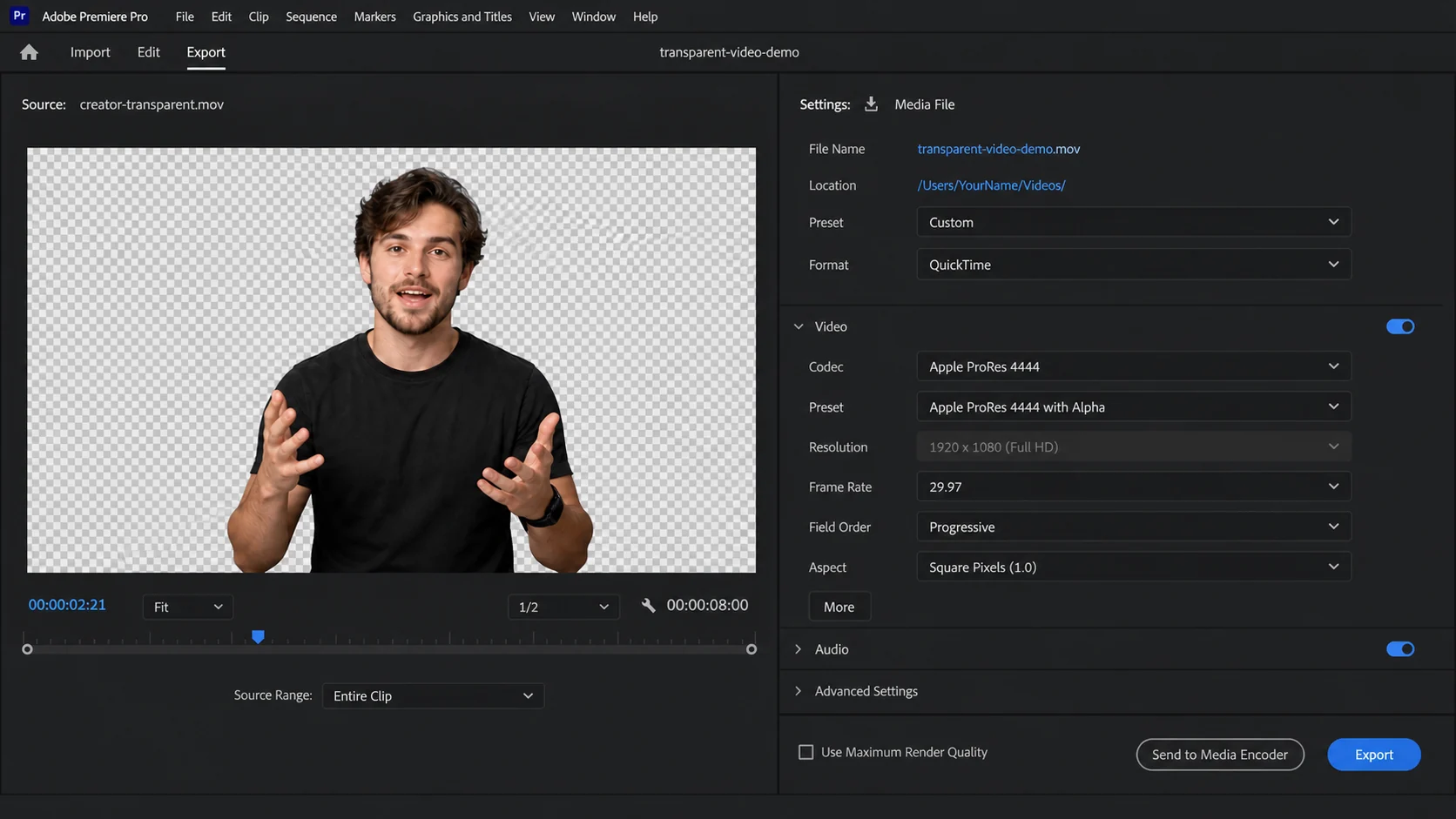
Choose an alpha-capable codec

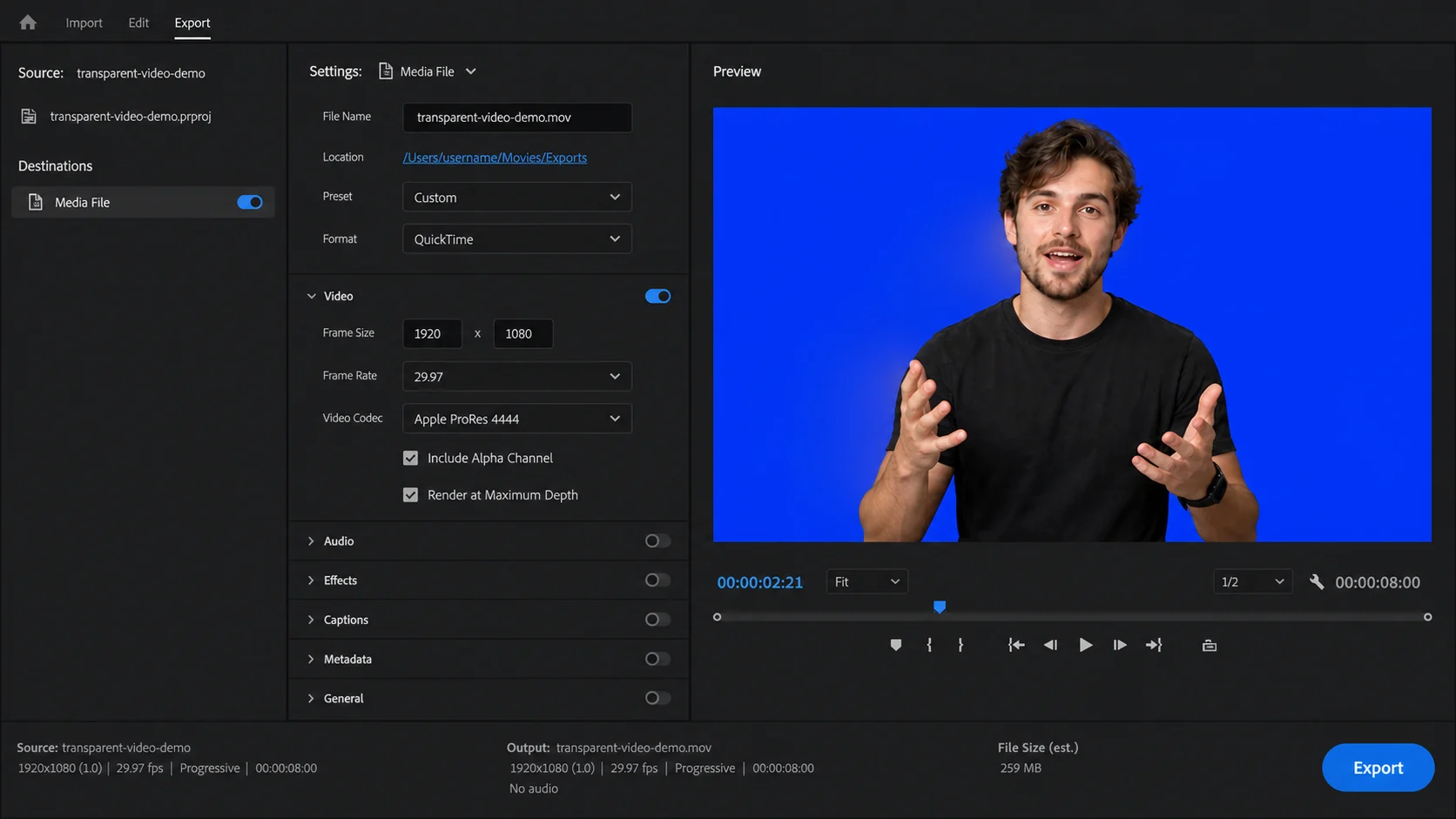
Choose a container and codec that can carry alpha. QuickTime with Apple ProRes 4444 is a common editing-master route. The `.mov` extension alone is not proof of transparency; the selected codec and alpha option determine what the file stores.

Step illustration showing QuickTime and ProRes 4444 in Premiere Pro export settings
05

Include the alpha channel

Enable Include Alpha Channel, or the equivalent control exposed by the chosen codec, and use an appropriate bit depth for the source. If no alpha control appears, return to the format and codec selection instead of exporting an opaque file.

Step illustration showing Include Alpha Channel in Premiere Pro settings
06

Reimport the result

Export, reimport the rendered file, and put a bright color matte underneath it. Check the first, middle, and last frames as well as difficult edges. A media player may display transparent pixels as black, so verification in a compositing timeline is more reliable than opening the file by itself.

Step illustration of a Premiere Pro transparent export verified over color
Choose the right Adobe workflow

Premiere Pro vs After Effects for background removal

Decision pointPremiere ProAfter Effects
Green screenGoodGood
Simple maskPossibleBetter
Complex hairLimited workflowBetter
RotoscopingLimitedBetter
EditingBetterLess convenient
CompositingBasicAdvanced
What the comparison means

Premiere edits the program; After Effects builds the difficult matte

Premiere Pro is efficient when the foreground already exists, the clip was shot on a clean green screen, or a simple mask is enough inside a larger edit. It keeps trimming, audio, captions, sequencing, and export close together. It should not be described as a dedicated one-click AI background remover.

After Effects is more appropriate when isolation itself is the hard part: detailed masks, rotoscoping, complex hair, multiple mattes, and advanced compositing. A practical Adobe workflow is to create or repair the foreground in After Effects, then edit and deliver the larger program in Premiere.

Open the After Effects alpha export guide

When should you use this method?

Use Premiere when transparency is one asset inside an edit

Premiere is a good fit for green-screen interviews, title animations with alpha, picture-in-picture compositions, and editing projects that need an alpha-capable handoff. The workflow is especially efficient when the matte is already clean and your main job is timing, audio, sequencing, and delivery.

Move the shot to After Effects when the subject requires detailed roto, frequent mask corrections, difficult hair, or a layered composite. Do not spend more time forcing a limited masking workflow in Premiere than the Dynamic Link or rendered-intermediate handoff would take.

Premiere Pro troubleshooting

Fix missing alpha options and exports that appear black

If Include Alpha Channel is missing, the selected format or codec is probably not alpha-capable. Switch away from the H.264 preset and inspect an alpha-supporting codec such as ProRes 4444. If the sequence checkerboard disappears before export, find the opaque video, color matte, graphic, or nested layer that still fills the frame.

If the rendered file appears black, reimport it over a bright color matte. A standalone player may simply use black behind transparent pixels. If the black remains inside Premiere, inspect the exported file’s alpha interpretation and repeat the export with the correct codec and alpha setting.

If the transparency exists but the edge is poor, determine whether the problem is the original matte or the export. The export settings cannot reconstruct clipped hair or repair a weak key. Return to the key/mask, or send the shot to After Effects for roto and compositing work.

  • No alpha control: change codec
  • Opaque sequence: inspect every lower and nested layer
  • Black player background: verify in a timeline
  • Weak edge: repair the matte before export
Premiere or VideoCutout?

Start in Premiere for an existing edit, or prepare the foreground first

Use Premiere directly when the footage has a clean key, the transparent element is already prepared, or the mask is simple enough to maintain in the edit. This keeps the export connected to the final sequence settings.

Use VideoCutout first when the source is an ordinary short clip and you want a dedicated AI removal pass before editing. Import the transparent WebM only after confirming that your Premiere environment interprets it correctly. If the source needs careful roto rather than automatic isolation, use After Effects instead of treating either automated route as a substitute for shot work.

Open the After Effects guideUnderstand transparent WebM

Codec reminder

The familiar MP4 preset is not an alpha master

H.264 is useful for ordinary delivery, but it does not carry the alpha channel required by this workflow. Use an alpha-capable editing master, verify it by reimporting it, and make a separate delivery encode after compositing when the destination does not need transparency.

  • Format: QuickTime
  • Codec: Apple ProRes 4444
  • Include Alpha Channel: On
  • Verify after reimport
Questions

Premiere Pro transparent export questions

Why is Include Alpha Channel missing?+

The selected format or codec probably does not support alpha. Switch to QuickTime and an alpha-capable codec such as ProRes 4444.

When should I use After Effects instead of Premiere Pro?+

Use After Effects when the shot needs detailed rotoscoping, difficult hair work, multiple masks, or advanced compositing. Use Premiere when the matte is already clean and editing and delivery are the main tasks.

Why does my export show a black background?+

An opaque layer may remain, the codec may have discarded alpha, or the player may display transparent pixels over black. Reimport the file above a colored matte to determine which case applies.

Can I use H.264 MP4 for a transparent Premiere export?+

Not for this standard alpha workflow. Use an alpha-capable codec such as ProRes 4444 for the editing master, then create a normal MP4 only after the foreground has been composited onto its final background.

Can Premiere Pro export transparent WebM?+

Do not assume native WebM alpha export is available in every installation. A safer editing workflow is to create an alpha-capable master, then convert for a verified WebM destination when needed.