
01
Use an AI video background remover
Upload ordinary footage to an AI remover for the fastest online workflow. This works without a green screen and is best when you need an automatic cutout rather than frame-by-frame control.
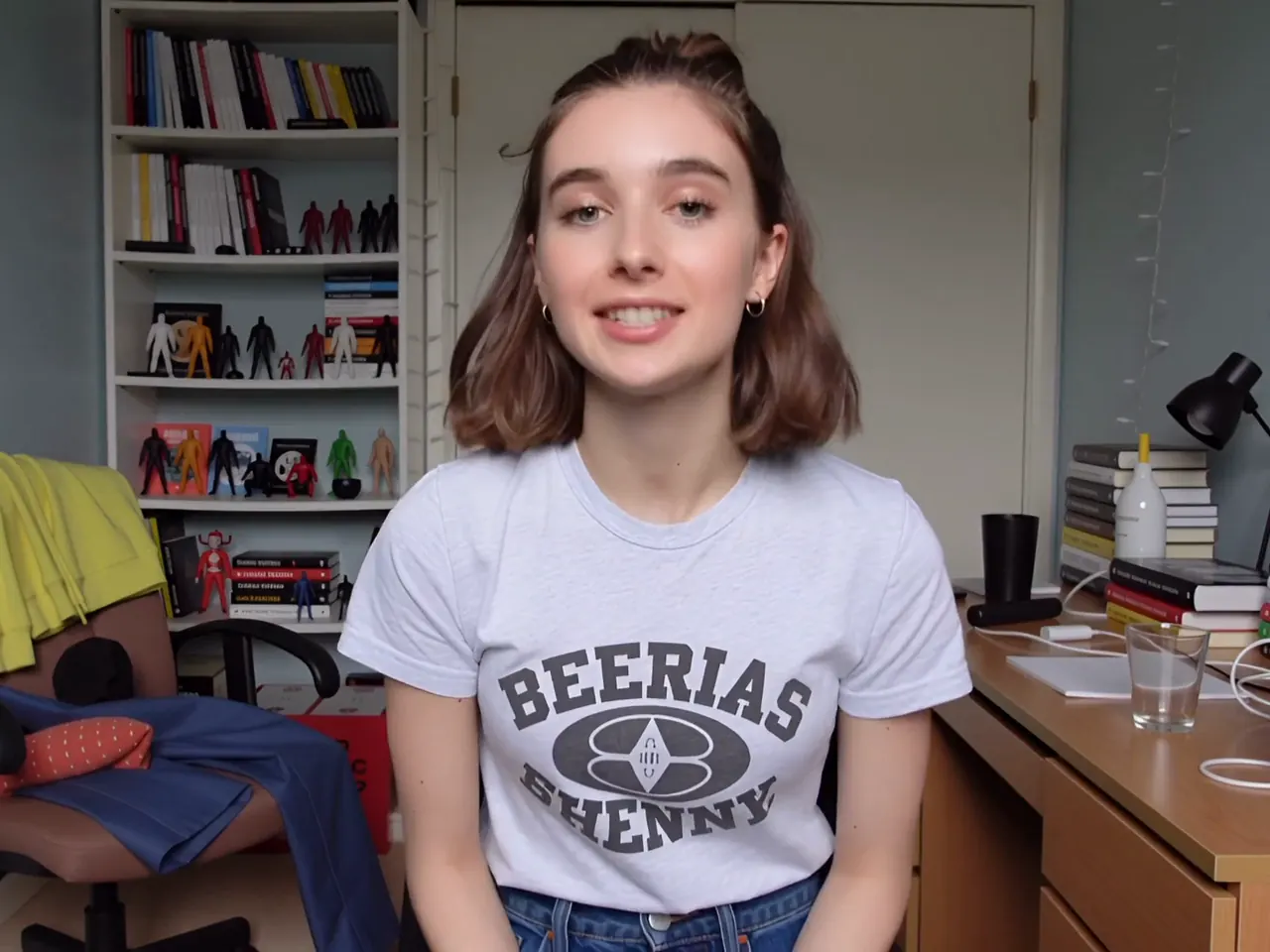
There is no single best method for every clip. This guide compares four practical options—from a fast AI background remover to chroma key and professional desktop editors—so you can choose by source quality, control, and output needs.
Upload ordinary footage to an AI remover for the fastest online workflow. This works without a green screen and is best when you need an automatic cutout rather than frame-by-frame control.
For evenly lit green-screen footage, chroma key gives precise color, spill, tolerance, and edge controls in a video editor.
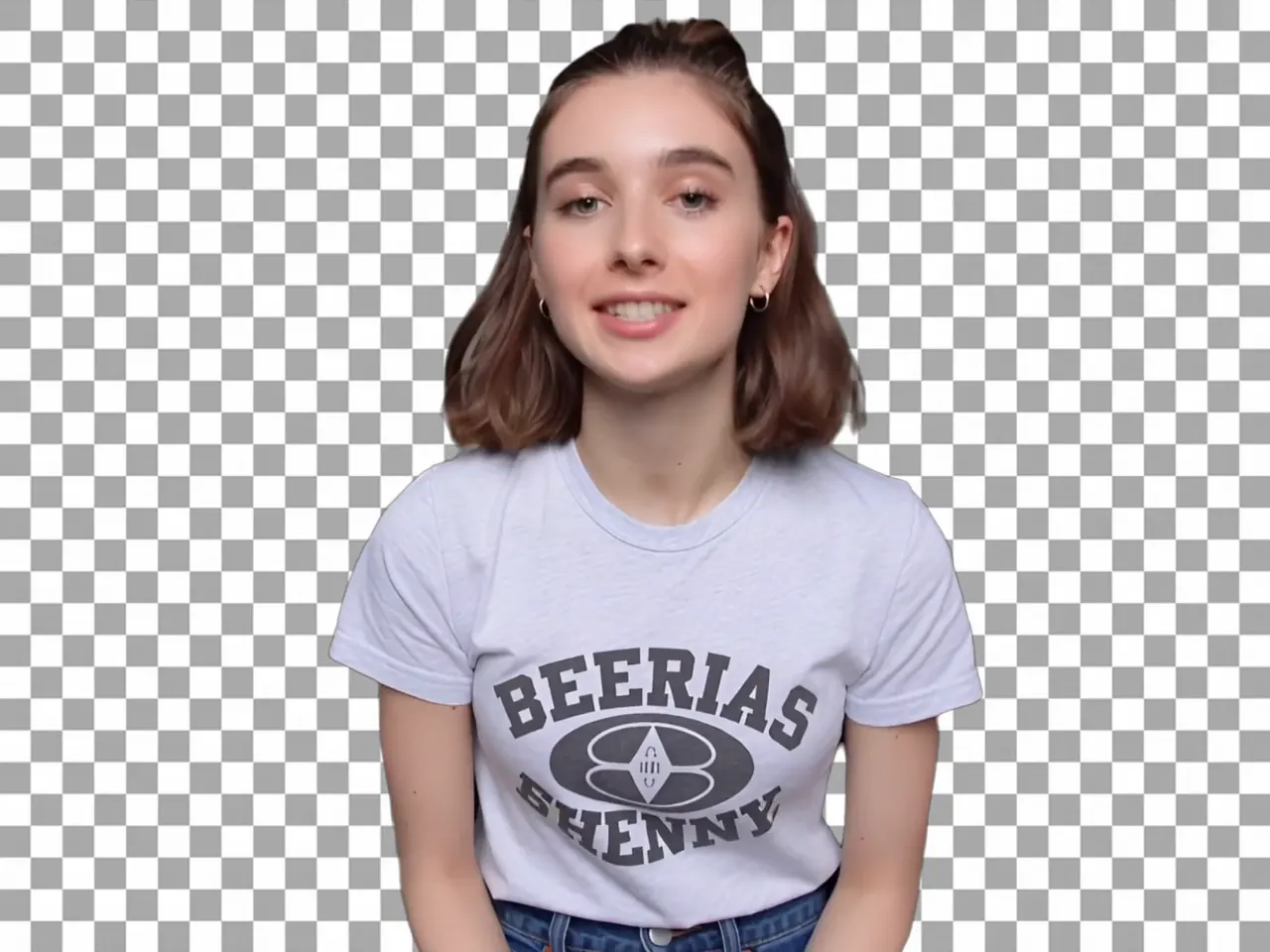
CapCut and Canva combine automatic removal with familiar editing tools. Availability, controls, and transparent export depend on the current app version and plan.
Choose a professional editor when difficult hair, motion blur, occlusion, or production delivery requires manual refinement and deeper export control.
Even lighting, visible edges, and a steady camera help the foreground model. You do not need a green screen, but heavy compression and rapid motion make the mask harder to stabilize.
Transparent WebM gives you the freedom to reuse the foreground in different scenes. A precomposited background is easier to publish where transparency is not supported.
Try the AI video background removerChange a video background with your own image
Start from the required final asset: a transparent overlay, a clip composited over a still image, or foreground footage for another editor. That choice determines the output format and the checks you need to perform.
The fastest workflow is not the one with the fewest clicks; it is the one that produces a file your next tool can actually use without another round of masking, conversion, or edge repair.
Use the highest-quality original available instead of a copy downloaded from a social platform. Keep the subject large enough to see, avoid aggressive compression, and prefer even lighting with visual separation between foreground and background.
Preview the beginning, middle, and end before upload. A clip that looks easy in its first frame may contain crossed hands, hair movement, camera cuts, fast rotation, or an object that briefly disappears behind another element.
The live remover accepts MP4, MOV, WebM, GIF. GIFs are converted locally in the browser before processing. Transparent mode returns WebM; the GIF workflow can also rebuild a looping GIF. Custom-background mode accepts one JPG, PNG, or WebP image up to 10 MB. A still image is composited behind the isolated foreground—the product does not currently accept a replacement video.
Create and verify an account to receive 5 one-time trial credits, enough for up to 5 seconds of processing. All plans, including free, support videos up to 10 minutes (600 seconds). The duration you can process depends on your credit balance. Free accounts accept files up to 50 MB; paid plans allow 200 or 500 MB depending on tier. Background images are limited to 10 MB. 1 credit per second, rounded up to a whole second, with a minimum of 3 credits per run.
Yes. The online workflow handles upload, AI segmentation, and export in the browser.
No. A clean, well-separated subject helps, but the model does not rely on a selected green color.
Use a higher-quality source, reduce motion blur where possible, and check whether the subject becomes too small or obscured in those frames.
1 credit per second, rounded up to a whole second, with a minimum of 3 credits per run. For example, 12 seconds costs 12 credits, 12.1 seconds costs 13 credits, and 1 second costs 3 credits.
All plans, including free, support videos up to 10 minutes (600 seconds). The duration you can process depends on your credit balance. Free accounts accept files up to 50 MB; paid plans allow 200 or 500 MB depending on tier. Background images are limited to 10 MB.